Connect Xero
Updated 24 November 2026
Quick answer
Open Integrations, press Connect Xero and sign in. Then choose where invoice lines and payments go, match each tax, switch it on and save. Your invoices are then sent automatically.
CamVerion sends your customers, invoices and payments to Xero, so they are not typed twice. It is one way: nothing is brought back from Xero.
Before you start
- You need an admin login in CamVerion.
- You need a Xero login that can manage the company you want to connect.
- Decide the date to start from, so invoices already in Xero are not sent twice.
Step 1: Connect
Open Integrations in the menu and press Connect Xero.
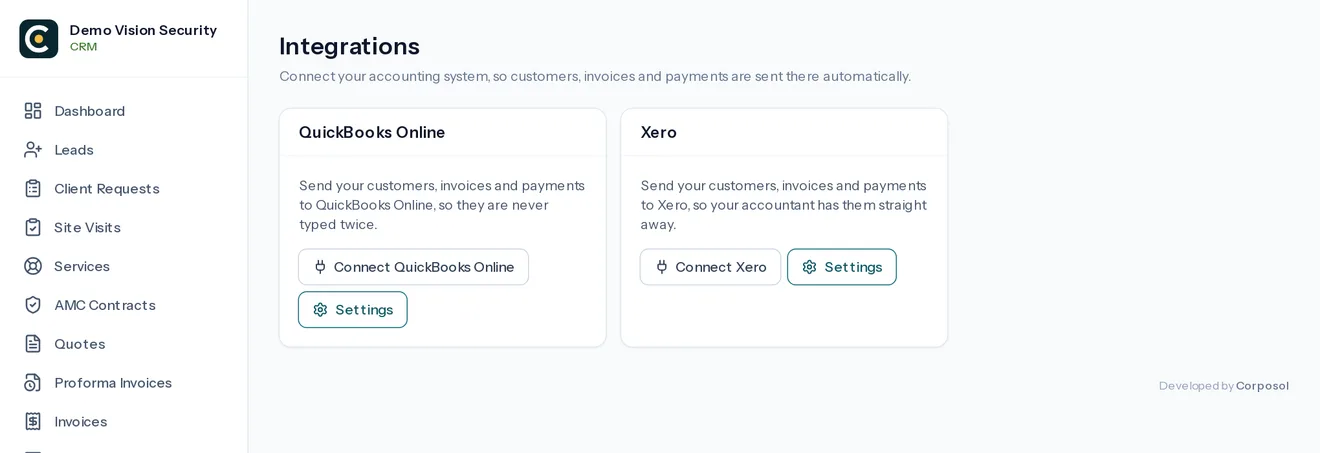
Sign in to Xero, choose your organisation and allow access.
You come back to CamVerion, at Settings → Integrations, showing the company you are connected to. Check its name.
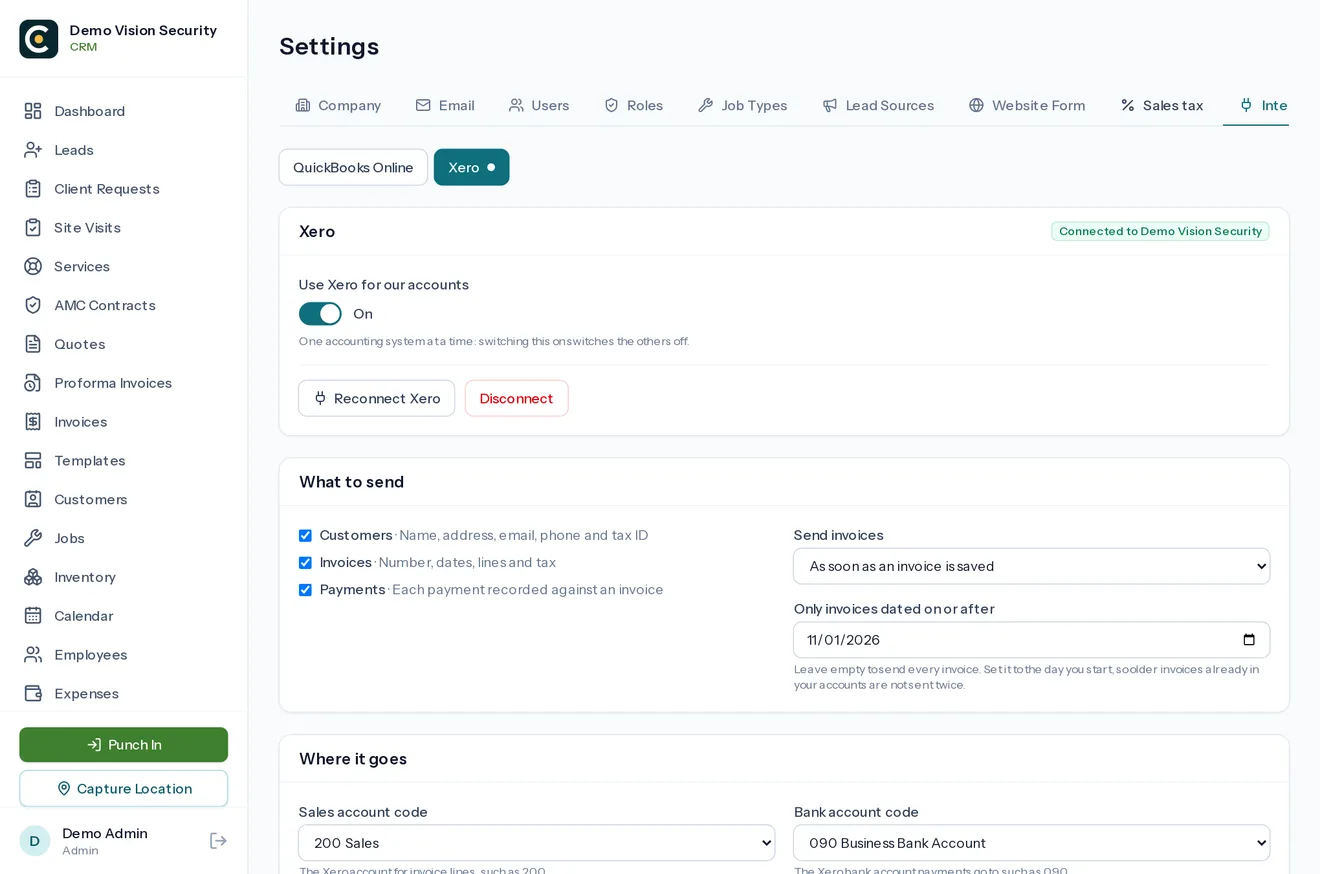
If your sign-in has more than one company, choose the right one from the list.
Step 2: Choose what to send
- Tick Customers, Invoices and Payments. Payments need invoices to be sent too.
- Choose when invoices are sent: as soon as they are saved, when sent to the customer, or only by hand.
- Set Only invoices dated on or after to the day you start.
Step 3: Choose the accounts and tax codes
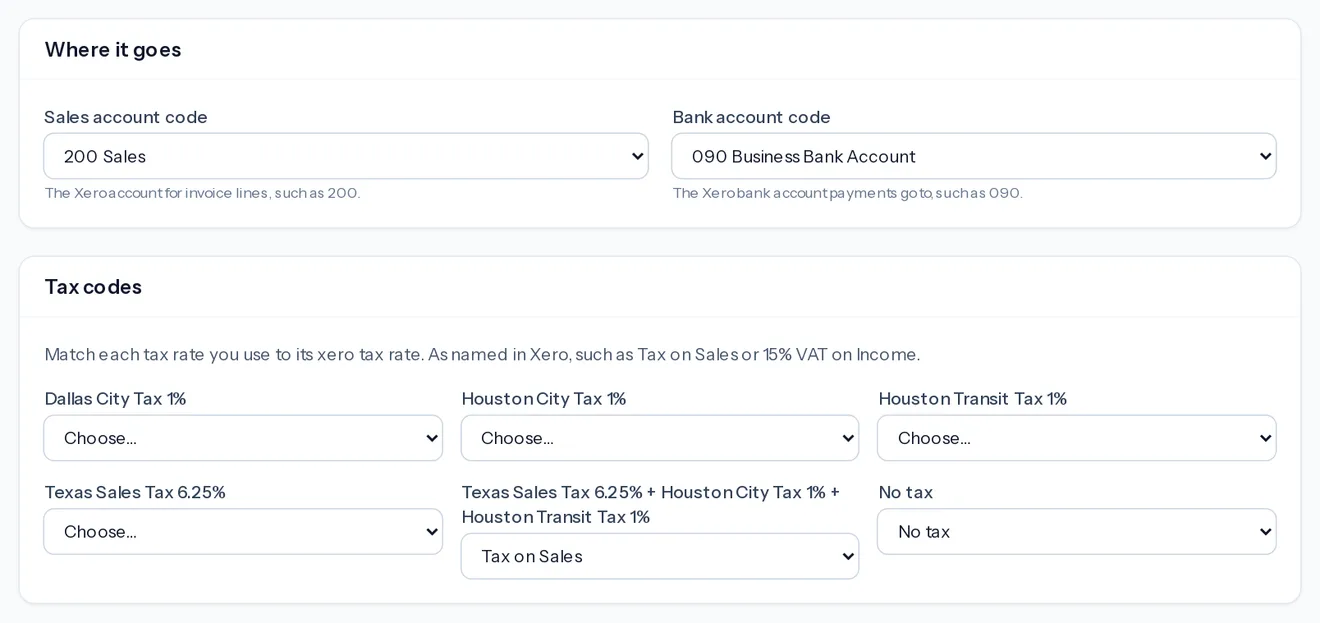
- Sales account code: the Xero account for invoice lines, such as 200 Sales.
- Bank account code: the Xero bank account your payments go to.
- Tax codes: match each tax you charge to its Xero tax rate. Taxes charged together, if you use them, show together and need one code. Match No tax too if you have lines without tax.
The lists come from your own Xero company. If a code is missing, add it in Xero and reload the page. Ask your accountant which to choose.
Step 4: Switch it on
Turn on Use Xero for our accounts and press Save. Only one accounting system can be on at a time.
Step 5: Send your invoices
New invoices and their payments are sent automatically, at the time you chose in step 2. To send one by hand, open the invoice and press Send to Xero.
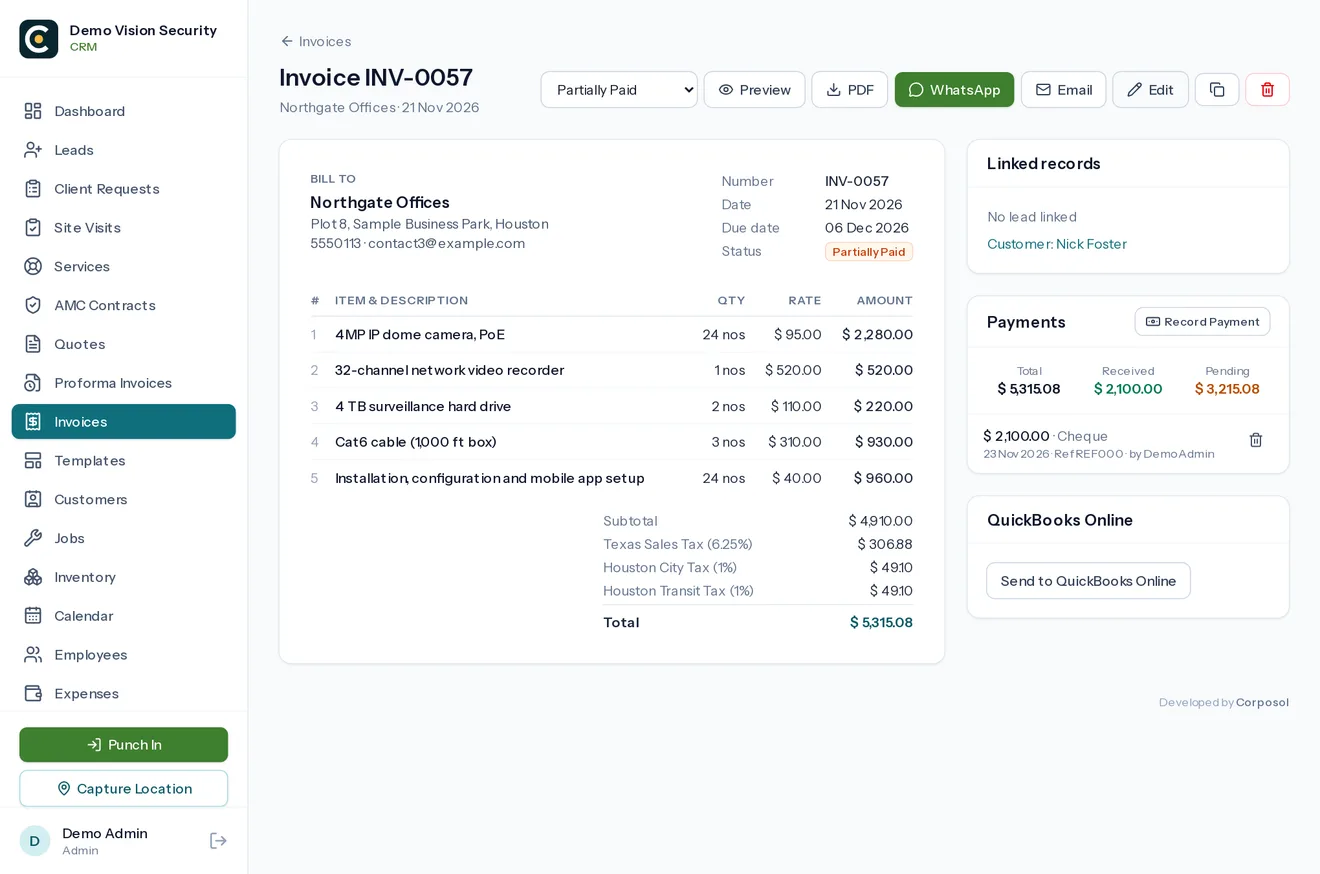
To send invoices made since your start date, before you connected, press Send earlier invoices.
See what was sent
Sent records, at the bottom of the settings, lists each customer, invoice and payment.
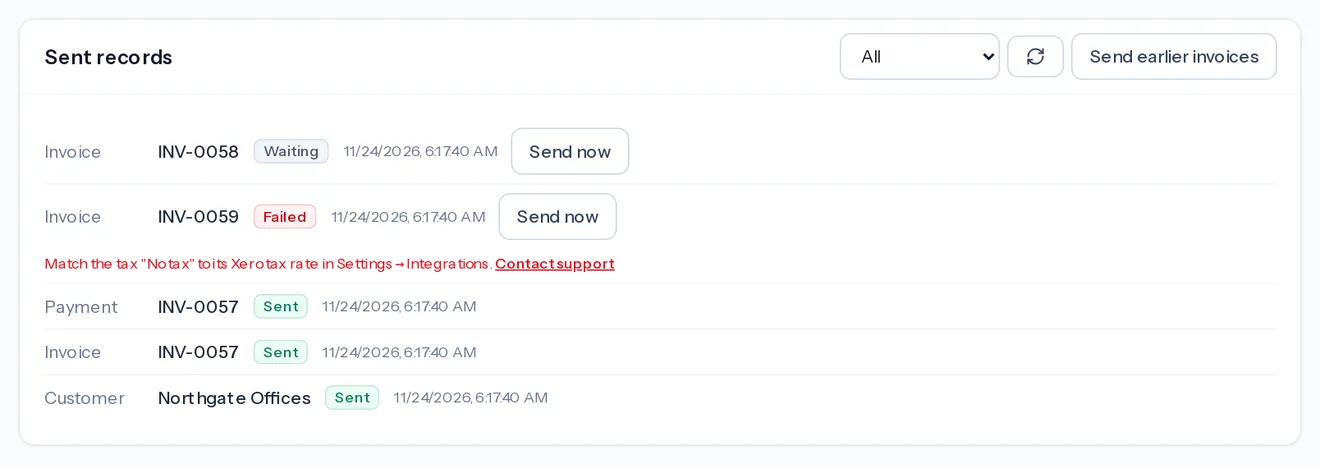
- Waiting: it is sent within a few minutes.
- Sent: it is in Xero.
- Failed: the reason is shown. Fix it, then press Send now.
If something goes wrong
- Match the tax: choose a code for that tax in step 3 and save.
- Reconnect needed: press Reconnect Xero and sign in again.
- This sign-in has expired: press Connect again. The sign-in must be finished within 15 minutes.
- For anything else, use Help & support in the menu.
Disconnect
Press Disconnect in Settings → Integrations. Sending stops, and what was already sent stays in Xero.
Frequently asked questions
Does CamVerion bring data back from Xero?
No. It only sends customers, invoices and payments to Xero. Record payments in CamVerion so both agree.
Can I use two accounting systems?
No. Switching one on switches the others off.
Will it send my old invoices?
Invoices dated before your start date are not sent. Those made since that date, but before you connected, are sent when you press Send earlier invoices.
Want a walkthrough? We can show you these screens using a job like yours.