Inventory
Updated 25 November 2026
Quick answer
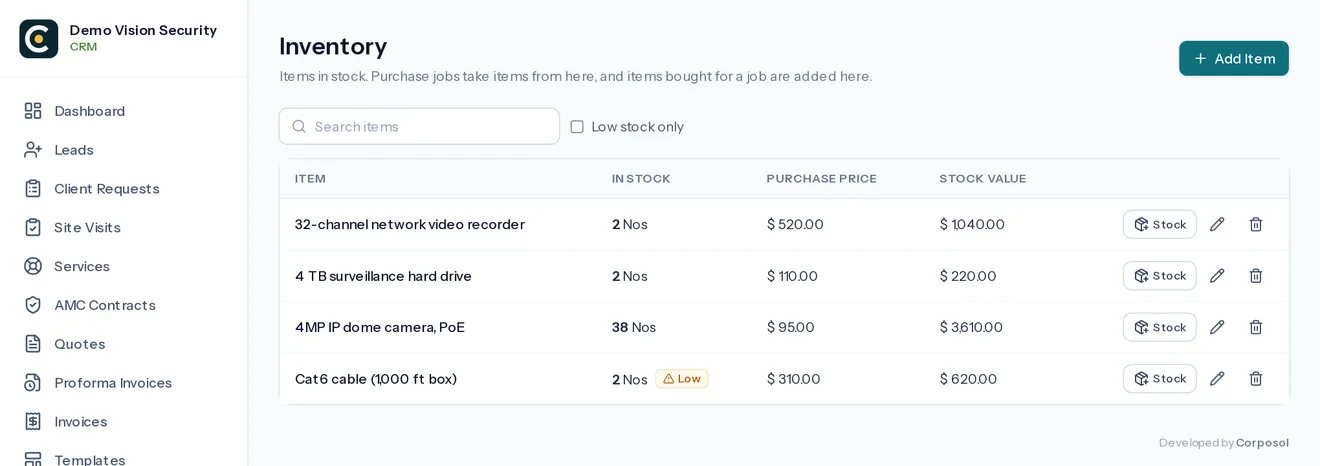
Inventory keeps the items you install in stock, with quantity in hand, purchase price and stock value. Add items, record stock bought and corrections after counting, and set a low-stock warning. Purchase jobs take items from stock or buy new ones against the proforma invoice, and installers record what was actually used, so the rest goes back into stock.
Stock that is not tracked disappears: cable left on site, cameras taken for one job and fitted on another, items bought twice because nobody knew they were on the shelf. Inventory in CamVerion connects your stock to the jobs that use it, so every item is charged to an order.
Switch it on
Inventory is off until an admin switches on Inventory in Settings → Company → Modules. The Inventory page then appears in the menu.
Admins and office staff can see stock. Admins, and your own roles given "Add items and stock, correct stock", can change it.
Add an item
Press Add Item.
| Field | How to fill it | Why it matters |
|---|---|---|
| Item name (required) | Such as "Dome Camera 2MP" | How everyone finds it, on this page and on purchase jobs |
| Unit | Such as Nos, m or box | Makes quantities clear, especially for cable |
| Purchase price | What you pay for one | Gives the stock value and the cost charged to jobs |
| Selling price | Optional | For your reference |
| Quantity in stock now | What is on the shelf today | Your starting stock |
| Warn when stock falls to | Optional, such as 5 | The item is marked Low at or below this |
| Details | Brand, model, specification | Helps tell similar items apart |
Record stock bought or counted
Press Stock on an item and choose What happened:
- Bought stock (add): enter the quantity bought, the price each and a note such as the supplier and bill number. The price each becomes the item's purchase price.
- Correction after counting (add or remove): enter the change, using minus to remove (such as -2), and the reason.
Every change is kept. Click an item to see its history: opening stock, stock bought, corrections and each job or service that used it.
The inventory list
The list shows each item with In stock, Purchase price and Stock value. Use Search items, or tick Low stock only to see what needs reordering.
An item can be deleted only if it has never been used on a job or service. Items that have been used stay, so the job history remains correct.
How jobs use stock
With Inventory on, a purchase job for a proforma invoice has an Items card instead of a single purchase price:
- From stock takes items out of inventory at their purchase price. You cannot take more than is in stock.
- Add manually is for items not in stock, bought for this job (also + Not in the list in the stock list). They are added to inventory and taken straight out for the job.
- Fill from PI-… lists the proforma's lines, taking items from stock where there is enough and marking the rest Add manually.
The installer on the installation job sees the items sent, without prices, and records how many were actually used. The rest goes back into stock. With Return to stock they can also enter just what is left over, such as 40 m of cable, with a note. Each return keeps who made it and when. See jobs for the full detail.
Stock on service calls
A technician working on their own service call has a Stock used card:
- Take from stock takes an item out of inventory for that service. They cannot take more than is in stock.
- Return to stock sends back what was not used.
The card lists what was taken, returned and used, with who and when, and no prices. An entry made by mistake can be removed by the person who made it or the office. What the customer pays for parts is still entered under the service cost. Deleting a service puts its stock back.
Good habits
- Count your fast-moving items, such as cameras, recorders and cable, every month, and record the differences as corrections with a reason.
- Set a low-stock warning on the items you use on almost every job.
- Ask installers to record what was used on the day the job finishes.
Our guide to inventory management for installation businesses covers stores, van stock and returns.
Frequently asked questions
Do I have to use inventory?
No. It is off until an admin switches it on. Without it, purchase jobs have a single purchase price.
What happens to items the installer did not use?
When the installer lowers the count used on the installation job, or presses Return to stock and enters what is left over, the unused items go straight back into stock, whether they came from stock or were bought new.
Can I see the value of my stock?
Yes. The inventory list shows the stock value of each item, from the quantity in stock and its purchase price.
Want a walkthrough? We can show you these screens using a job like yours.