Field staff tracking
Updated 21 November 2026
Quick answer
Field staff tracking in CamVerion uses four things together: punch in and out with location, Capture Location at each client, Start Work and End Work on each job, and device approval. Admins read them on the Employees page under Attendance, Locations, Job Hours and Devices. Locations are saved only when staff press a button; it is not live GPS tracking.
Most field service businesses know where their technicians are only from what they say on the phone. This page explains how the office can check the field team in this field service software: where staff were, how long each job really took, and that nobody signs in for someone else.
All four features work in the phone's web browser. There is no separate tracking app and no GPS device to buy.
What is recorded
| Feature | Who uses it | What is saved | Where admins see it |
|---|---|---|---|
| Punch In and Punch Out | Every employee | The time and location of each punch | Employees → Attendance |
| Capture Location | Every employee | The location and time when the button is pressed | Employees → Locations |
| Start Work and End Work | The person assigned to a job or service call | When work started and stopped on that job | Employees → Job Hours, and on the job itself |
| Approve new device login | Admins switch it on | Which phone or computer each person signs in from | Employees → Devices |
Nothing is recorded in the background. A location is saved only when someone punches or presses Capture Location.
Set it up
- Make sure each employee has their own login. See users and roles.
- Ask staff to allow location in their phone's browser when it first asks, and to keep location (GPS) switched on. Punching and capturing a location need it.
- If you want each person tied to one phone, switch on Approve new device login under Settings → Company → Modules, and choose Field staff only or Everyone except admin. See approve new device login.
- Tell staff what is recorded and why, before you start. Local employment and privacy rules may apply.
Capture Location at each client
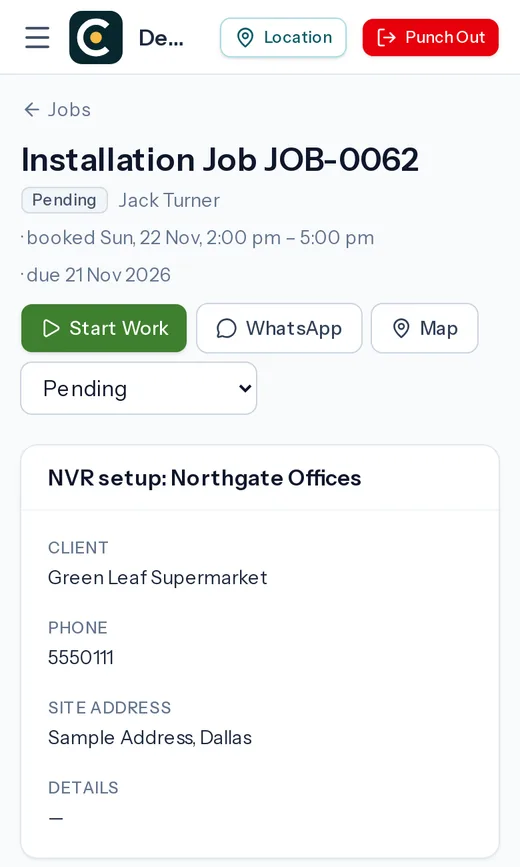
On a phone, the Location button sits at the top of every screen, next to Punch In or Punch Out. On a computer, Capture Location is below the punch button in the sidebar.
Set a simple rule and stick to it, for example:
- Sales staff capture their location at every client they visit.
- Technicians capture it when they reach each site and when they leave.
- Anyone working away from the office captures it every hour.
Each press saves one location with the time and its accuracy in metres. Staff see their own captured locations under Locations on their Attendance & Leave page.
Start Work and End Work on each job
When the assigned person begins work on a job or service call, they press Start Work, and End Work when they stop. Starting work on something else, or punching out, ends the running session automatically. The job shows each session with who worked, when and for how long.
How admins check the field team
Open Employees:
- Attendance: who punched in today, when and where. Auto punch outs at midnight are marked, so you can follow them up.
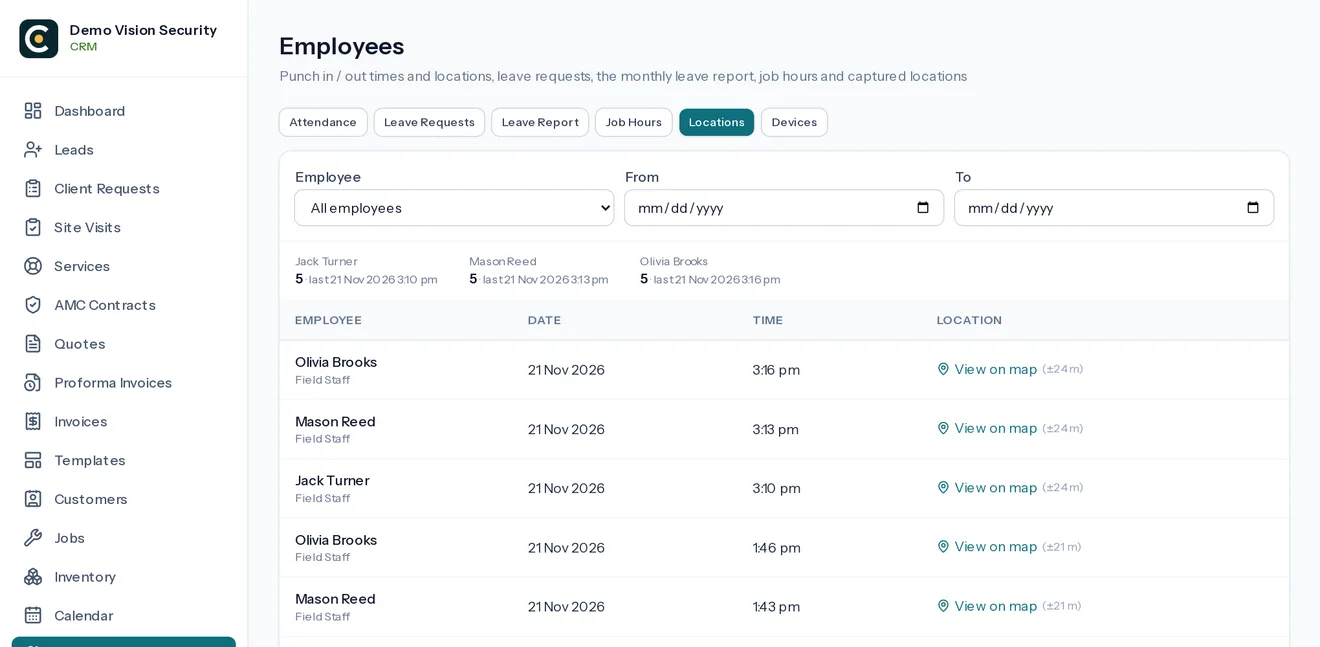
- Locations: every captured location with the employee, date, time and a View on map link. Filter by employee and dates. The top shows how many each person captured, and when they last did.
- Job Hours: each Start Work to End Work session, with the job or service call, the start, end and hours, and totals per employee.
- Devices (admins): each person's approved device, and new devices waiting for approval.
A good weekly routine:
- Pick two or three visits at random from the calendar and open View on map for the captured location at that time.
- Compare each person's punched hours with their Job Hours. A day with eight hours punched and one hour of work recorded deserves a conversation.
- Compare Job Hours across similar jobs to price the next quote properly.
- Approve or remove any device waiting in Devices.
Frequently asked questions
Is this live GPS tracking of staff?
No. A location is saved only when staff punch in or out or press Capture Location. You see where they were at those moments, not a live map.
Can staff capture a location for someone else?
Not if device approval is on. Each person can sign in only from their own approved device, so another person's phone cannot be used to punch in or capture locations for them.
How do I see how long a technician spent on a job?
Open the job to see each Start Work and End Work session, or open Employees → Job Hours for all jobs, filtered by employee and dates.
What if a technician's phone has no location permission?
They cannot punch in or capture a location until they allow it. The phone shows a message telling them to allow location for the site in the browser settings and switch on location services.
Want a walkthrough? We can show you these screens using a job like yours.