Client requests
Updated 20 November 2026
Quick answer
Client Requests gives your company an online service request form with your logo. Send the link by WhatsApp; the client picks New Installation or Service and enters their details, Google Maps location and request. Each request waits until an admin approves it into Leads (and Services) or rejects it, and every admin is emailed from your company mailbox.
After a phone call, the details a client gives you are often incomplete: no full address, no location, a vague description of the problem. The service request link lets clients type it in themselves, in an online form with your company name and logo, so your office gets clean details and the request lands straight in your field service software.
Open Client Requests in the menu. Admins have it; other roles can be given it in Settings → Roles ("Service request link").
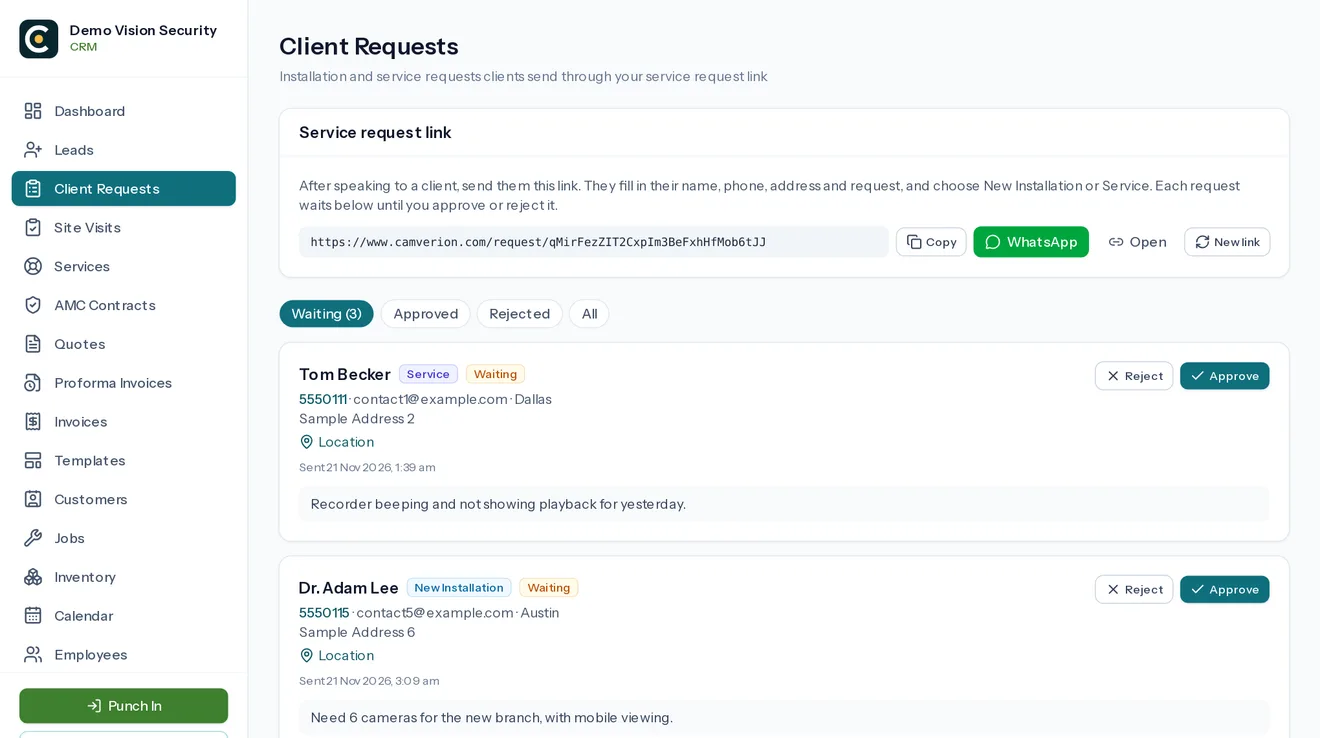
Your service request link
The Service request link card at the top shows your company's link.
- Copy copies it, to paste into a message or your website.
- WhatsApp opens WhatsApp with the link ready to send.
- Open shows the form as your client sees it.
- New link makes a new address. The old link stops working straight away. Use it if the link has been shared too widely; you are asked to type "yes" to confirm.
What the client fills in
| Field | Notes |
|---|---|
| New Installation or Service (required) | What they need |
| Your name (required) | |
| Phone (required) | Used to match an existing lead |
| Optional | |
| Address and City | Optional |
| Google Maps link (required) | They share their location from Google Maps and paste the link |
| Your request (required) | Such as "4 cameras for the shop" or "camera 2 shows no picture" |
After sending, the client sees a thank-you message. Every admin gets an email from your company email account; if you have not added one, no email is sent, but the request still appears here.
Approve or reject a request
Requests are listed under Waiting, with the tabs Approved, Rejected and All for the rest. Each card shows the type, the client's details, a map link and their request.
Approve opens a box where you can change the Request type before confirming:
- New Installation → add to Leads: the client is added to Leads with the source Service Request Link and a follow-up today.
- Service → add to Leads and Services: the client is added to Leads, and a new service call is raised with their problem and location, not yet assigned.
If an open lead already has the same phone number, the request is added to that lead's notes instead of creating a second lead.
Reject removes the request from the waiting list without adding anything. Approved and rejected requests show who decided and when.
Tips
- Send the link straight after the call, while the client is still expecting it.
- Add the link to your website's contact page and your WhatsApp Business profile.
- Check Waiting at least twice a day, so clients are not left without a reply.
Frequently asked questions
Is the Google Maps location required on the request form?
Yes. Clients paste a Google Maps share link, so your technician can drive straight to the site.
Does a client request create a lead automatically?
Not until you approve it. Requests wait under Waiting so spam and duplicates never reach your leads. Approving adds the lead, and for a service request also raises the service call.
Can I put the service request form on my website?
Yes. Copy the link and add it to your website as a button or link, for example "Request a service visit". For general enquiries, you can also connect your website's own contact form under Settings → Website Form.
Want a walkthrough? We can show you these screens using a job like yours.