For IT support, computer service and printer service companies
IT and computer service business software for support calls, AMCs and on-site engineers
An IT service business answers calls all day: a printer that will not print, a slow laptop, a server that needs a visit, an office moving floors. CamVerion turns every call into a service call with an engineer and a status, runs your computer AMCs, and quotes and invoices the hardware you sell.
Plans from $49 a month for up to 10 users. Every feature on every plan.
Support calls disappear when they live in chats
Most IT service companies take calls on the owner's phone and WhatsApp groups, and send whoever is free. Nobody can say how many calls are open, how long an AMC customer has waited, or how much time an engineer really spent at a client. Hardware sales get quoted from old files, and AMC renewals are remembered only when the client complains.
IT service business software gives every call a number, an engineer and a stage, keeps each client's history on one record, and creates planned visits from each AMC. Engineers punch in and record their time on each call, so you can see which contracts pay and which do not.
One flow, from first call to final payment
Each stage creates what the next one needs, so nothing is typed twice.
-
Step 1
Enquiry
New clients, hardware enquiries and AMC requests logged as leads with a follow-up date.
How it works -
Step 2
Site visit
An engineer checks the systems, network and printers before you quote.
How it works -
Step 3
Quote
Quote laptops, desktops, printers, licences and installation, or an AMC, as a PDF.
How it works -
Step 4
Order and jobs
An approved proforma creates the purchase and installation jobs for new hardware.
How it works -
Step 5
Scheduling
Book on-site visits into each engineer's free slots.
How it works -
Step 6
Support calls
Every support call logged, assigned and followed from Open to Issue Resolved.
How it works -
Step 7
Computer AMC
Planned visits created from each AMC, and renewals due listed.
How it works -
Step 8
Invoice
Invoice hardware, AMCs and chargeable calls, and record payments.
How it works
Answer every support call
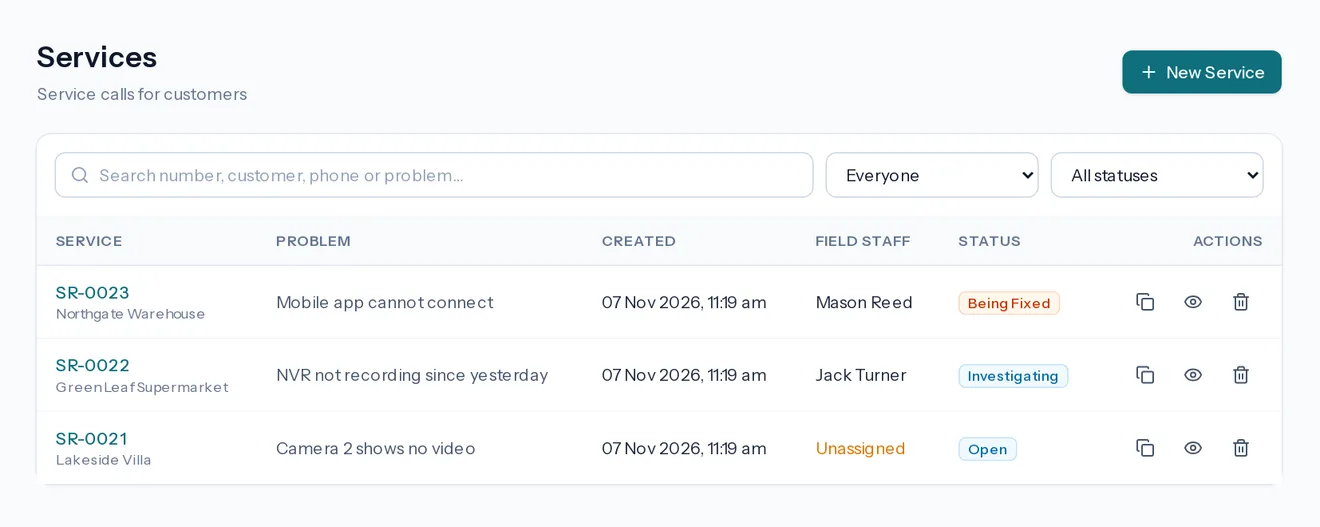
Support calls with a number, an engineer and a stage
Each call records the client, the problem, the Google Maps location and who is working on it. Engineers update the stage from their phone, add parts and charges, and the client gets a receipt or tax invoice.
- Clear stages from Open to Issue Resolved
- Parts, travel and charges recorded on the call
- Every call kept on the client's history
Sell hardware and AMCs
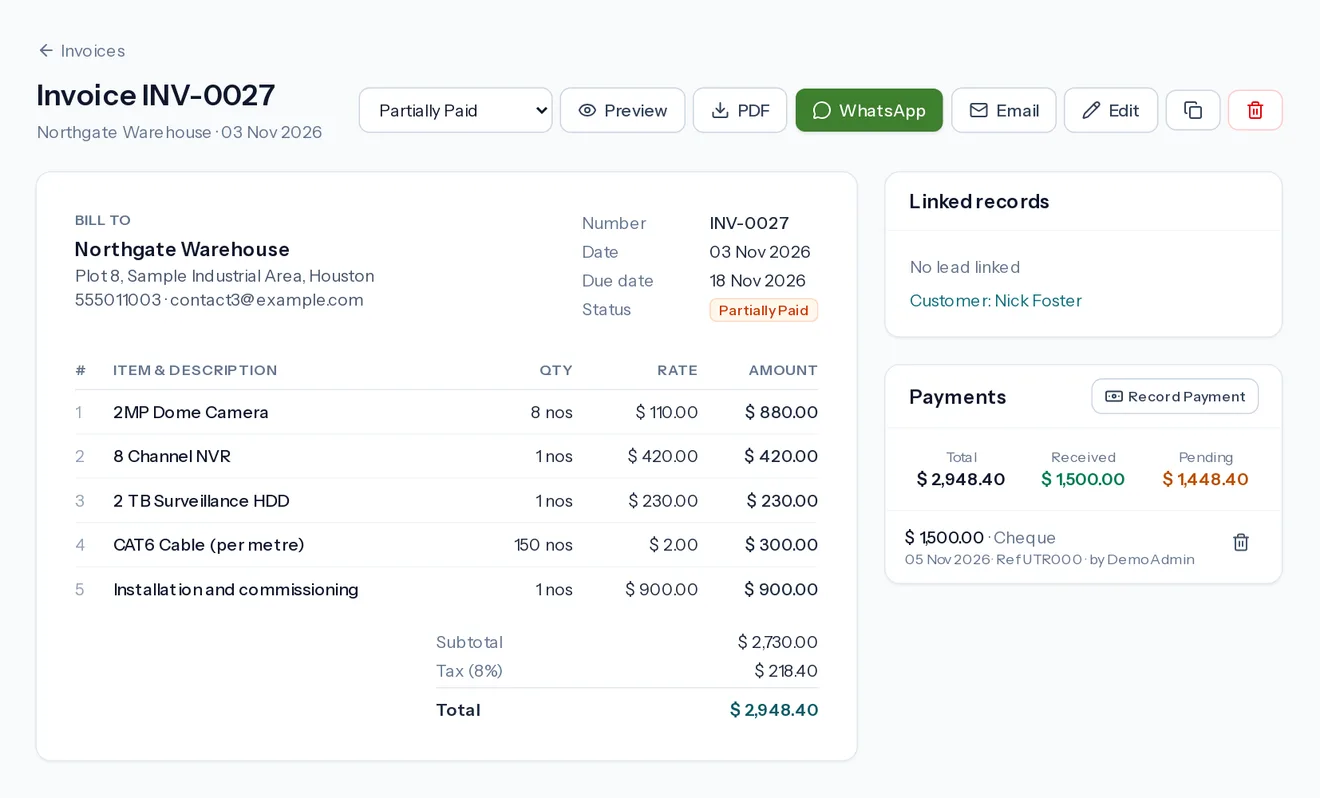
Quotes and invoices for everything you sell
Quote laptops, printers, networking and licences from your catalogue, turn the accepted quote into a proforma and invoice without retyping, and record advances and balances.
- Your logo, terms and tax on every PDF
- Send several quotes and invoices in one WhatsApp or email
- What each client still owes, at a glance
Screens are from the real software, with made-up demo data.
Everything your IT service business uses day to day
-
Enquiries and follow-ups
New clients, hardware and AMC enquiries, each with a next step.
-
Support calls
Every call numbered, assigned and followed to the end.
-
Computer AMCs
Planned visits created from each AMC, and renewals listed.
-
Hardware quotes
Laptops, printers, networking and licences from your catalogue.
-
Installation jobs
New hardware orders become purchase and installation jobs.
-
Engineer scheduling
On-site visits booked into free slots.
-
Service request link
Clients raise support requests themselves.
-
Field staff tracking
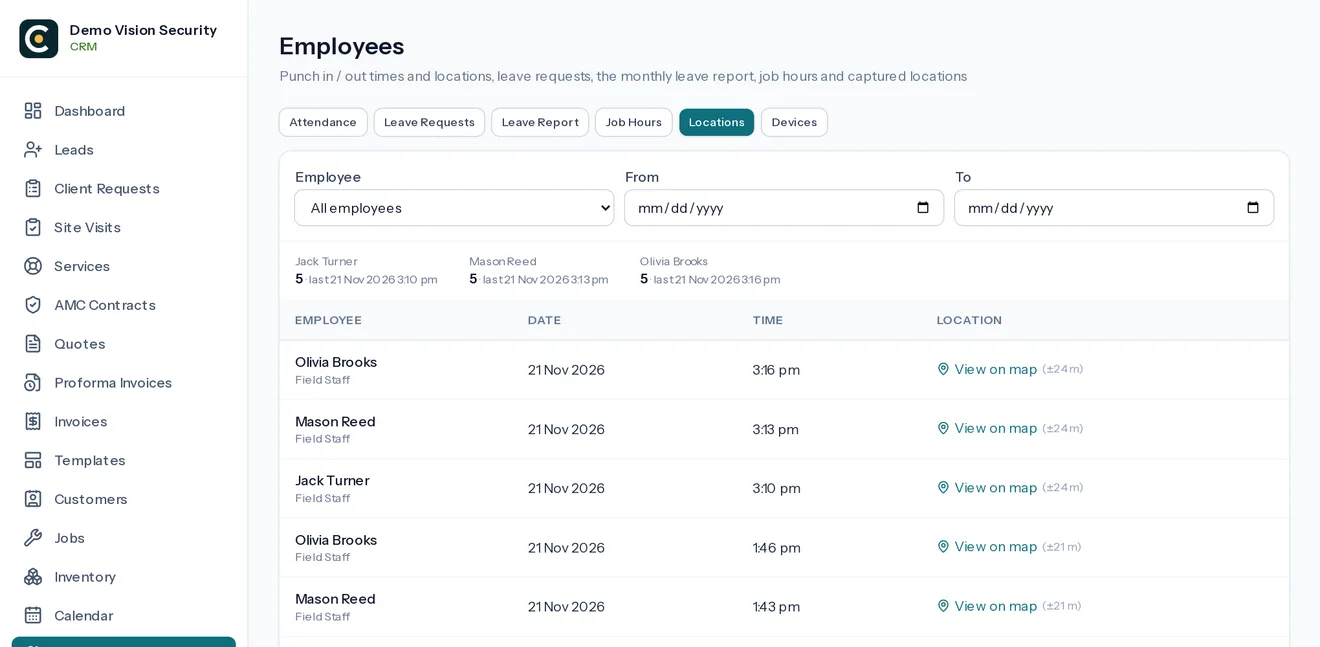
Punch in, Capture Location at each client, and the Locations report.
-
Time per call
Start Work and End Work show the hours spent at each client.
-
Device approval
Engineers sign in only from their own approved phone or laptop.
-
Stock of parts
Optional inventory of RAM, drives, toner, cables and spares.
-
Receipts and invoices
Chargeable calls, hardware and AMCs invoiced and paid.
Field team tracking
Know where your engineers are, and the hours they really worked
IT engineers move between client offices all day, and AMC clients often ask how much time you really spent on them. Punch in, Capture Location and Start Work on each call give you the answer, and show which contracts are profitable.
-
Capture Location
Your engineers press Capture Location on their phone, and the office sees where they were and when on the Locations report. Ask them to capture it at every client, or every hour, so you can check visits at random instead of phoning around. -
Punch in and out with location
Attendance starts with a punch in that records the time and place, and ends with a punch out. A forgotten punch out closes automatically at the end of the day, so the attendance report is ready for payroll. -
Start Work and End Work on each job
Pressing Start Work on a job or service call starts the clock and End Work stops it. Admins see the hours each person spent on each job, so you can price the next one properly and spot hours that were claimed but not worked. -
Approve new device login
Switch it on, and each person can sign in only from their one approved phone or computer. A login from any other device waits for the admin's approval, so logins are not shared and attendance is marked by the right person. Choose field staff only, or everyone except admins.
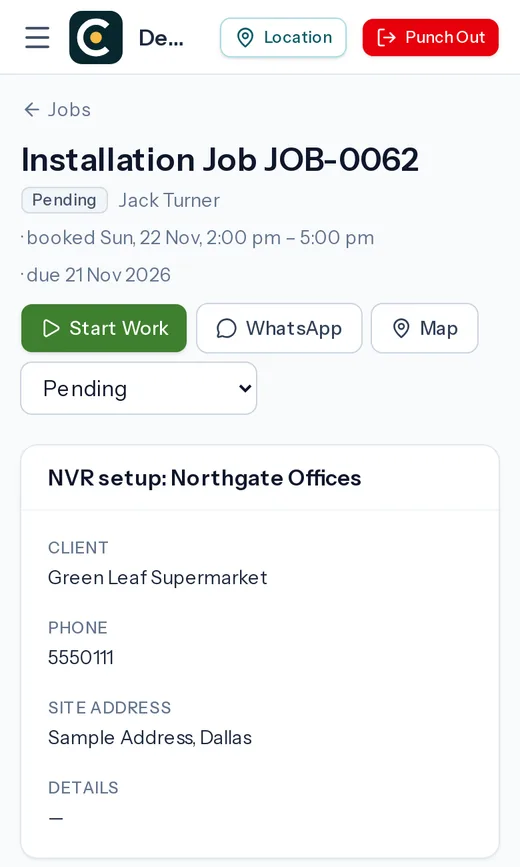
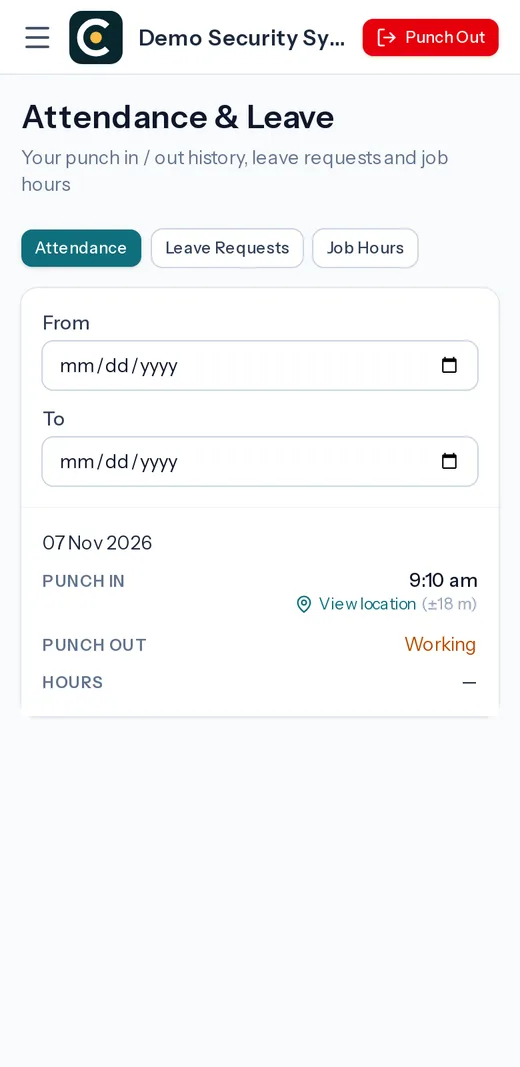
Locations are taken only when staff punch or press Capture Location, never in the background. How field staff tracking works
Built for field teams
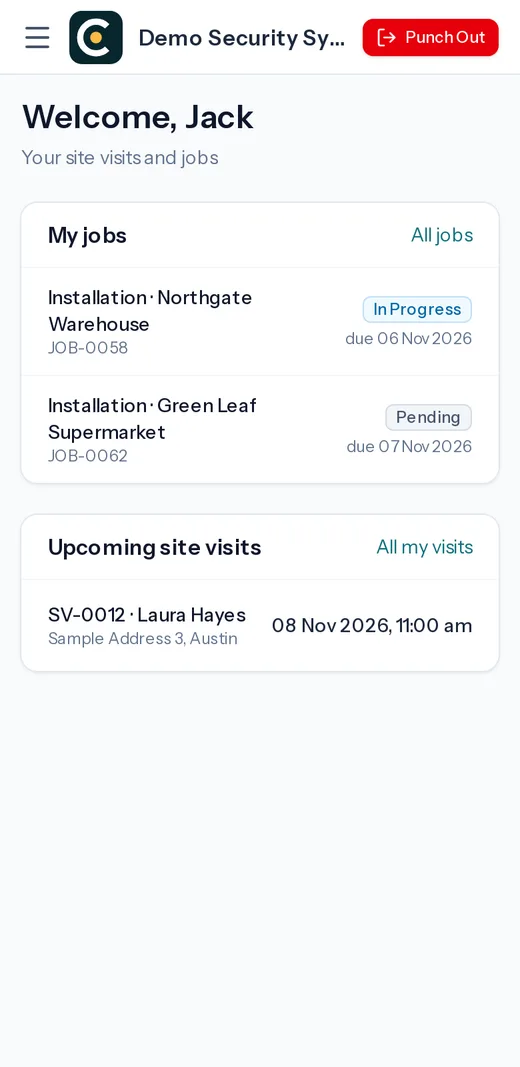
Engineers see their calls, not your margins
Engineers open their assigned calls and visits on their phone with the address, contact and problem. They punch in, press Start Work and End Work on each call and add notes. Prices and accounts stay with the office.
How roles workOnline service request form
Clients raise IT service service requests themselves
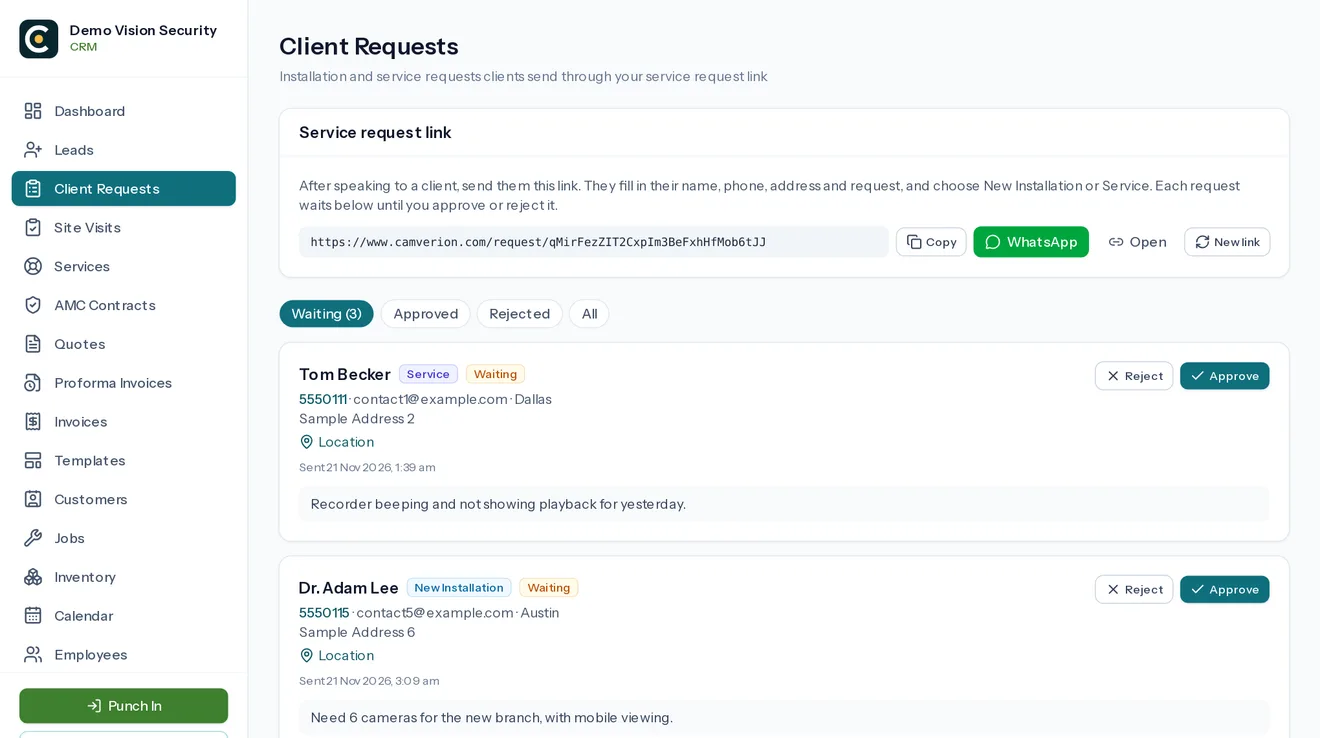
When a client's printer stops before a deadline, they want to log it now. Your service request link lets them describe the problem and share their location, and it becomes a service call when you approve it.
- Your own link and form with your company name and logo
- Google Maps location required, so the technician goes straight to the site
- Approve a new installation into Leads, or a fault into Leads and Services in one click
- Every admin is emailed from your own company mailbox, once you add it
- Reject spam without it ever reaching your leads
Inventory, when you want it
Stock that is charged to the job that used it
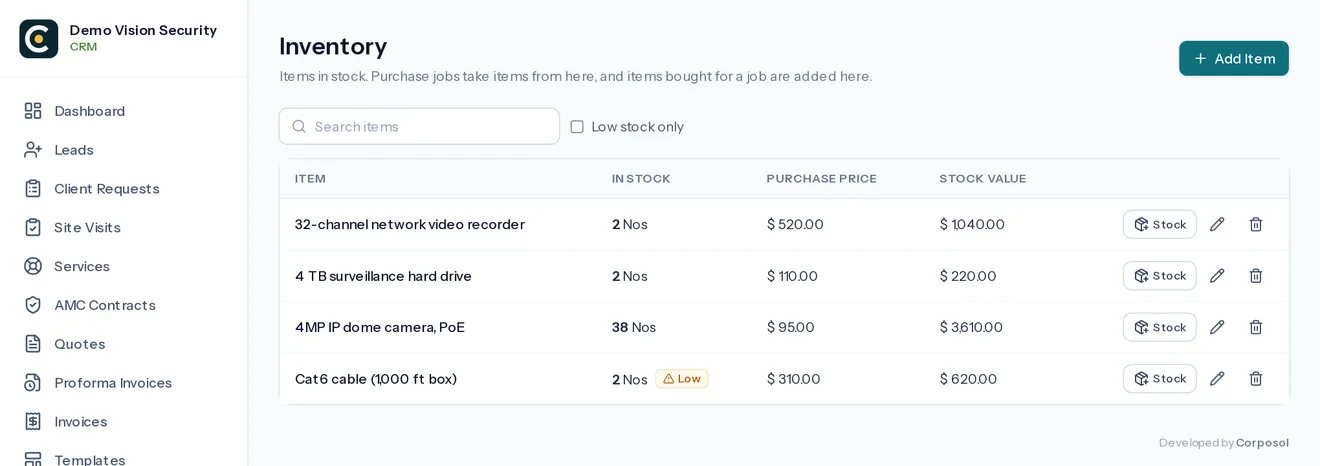
Switch on Inventory to keep RAM, SSDs, toner, keyboards, cables and spare parts in stock. Hardware orders take what they need, engineers record what they used, and low-stock warnings tell you what to reorder.
- Stock bought and corrections after counting, each with a note
- Low stock warnings for the items you use on every job
- Items taken from stock or bought new on each purchase job
- Unused items go back into stock when the installer records what was used
- Off by default: companies that do not hold stock never see it
An office IT client, from the first call to the AMC renewal
How a typical IT service client moves through the software.
-
1. Enquiry
A 20-person office asks for an AMC and five new laptops. You add the lead with a follow-up.
-
2. Site visit
An engineer checks the systems and network and captures the location.
-
3. Quote
You send one quote for the laptops and another for the AMC, together in one WhatsApp message.
-
4. Installation
The proforma creates the jobs. The laptops are set up; the engineer presses Start Work on site.
-
5. Support calls
Printer and email problems arrive through your request link and are assigned to engineers.
-
6. AMC renewal
Planned visits run all year, and the AMC appears under renewals due a month before it ends.
A good fit for
Teams of about 2 to 50 people, with an office and staff working at customer sites. Every plan includes every feature.
- Computer and laptop service companies
- IT support and AMC providers for offices
- Printer and copier service businesses
- System integrators selling hardware
- Networking and server support teams
- Authorised service partners of computer brands
- IT companies that also install CCTV
- Teams of 2 to 50 engineers
Questions about it and computer service business software with amc
What is IT service business software?
Software that runs a computer, laptop, printer or IT support company: support calls with an engineer and a stage, computer AMCs with planned visits, hardware quotes and invoices, engineers' attendance and hours, and each client's history.
Can I manage computer and printer AMCs?
Yes. Each AMC records the client, coverage and visit interval, raises each planned visit as a service call, and appears under renewals due before it ends.
Can clients raise support tickets themselves?
Yes. Send them your service request link. They describe the problem and share their location, and you approve it into a service call.
Can I see how much time engineers spend at each client?
Yes. Engineers press Start Work and End Work on each call, and the Job Hours report shows the time per call, per client and per engineer.
Is it a remote monitoring or helpdesk tool?
No. It runs the business side: calls, visits, AMCs, engineers, quotes and invoices. Remote access and monitoring tools are used alongside it.
How much does it cost?
Plans start at $49 a month for up to 10 users, with a one-time setup fee. Every plan includes every feature.
Further reading for it and computer service business owners
Who it is for
Also built for these installation and service businesses
Different trades, the same journey: an enquiry, a site visit, a quote, the installation, the invoice and years of service. One field service management system runs it for all of them.
- CCTV installation software Surveys, multi-camera quotes, installation jobs and service calls. See how it works
- Security installation software Alarms, access control, intercoms and fire alarm work. See how it works
- Smart home installation software Smart home projects, room-by-room quotes and support. See how it works
- AC and HVAC installation software AC installations, service visits, AMCs and breakdown calls. See how it works
- RO water purifier installation software Purifier installations, filter changes, AMCs and service calls. See how it works
- Solar and inverter installation software Roof surveys, rooftop projects, inverters, batteries and O&M. See how it works
- AV installation business software Equipment quotes, AV projects, calibration and support. See how it works
- Network installation business software Structured cabling, Wi-Fi projects and support calls. See how it works
- Electrical contractor software Wiring projects, panels, EV chargers and maintenance call-outs. See how it works
- Appliance repair business software Repair calls, warranty jobs, spare parts and service centres. See how it works
- All industries Can't find your industry? Tell us how you work, and we will set it up or build it for you. See all industries
Run your next installation job from one place
Sign up with your company details and pay online. Your account opens as soon as you have paid, and you can add your team.