AMC maintenance contracts
Updated 20 November 2026
Quick answer
Add an AMC contract with the customer, cover, term, visit frequency, technician and Google Maps location. A week before each visit is due, CamVerion creates a service call for it automatically, and contracts ending within 30 days appear on the dashboard with a Renew button, so no visit or renewal is missed.
A maintenance contract, often called an AMC, is a customer's paid cover for a period, with service visits every few months. CamVerion plans the preventive maintenance visits for you and reminds you when a contract is due for renewal, so AMC work runs without a separate spreadsheet.
Open AMC Contracts in the menu. Admins and office staff can add and change contracts. Only admins can delete them.
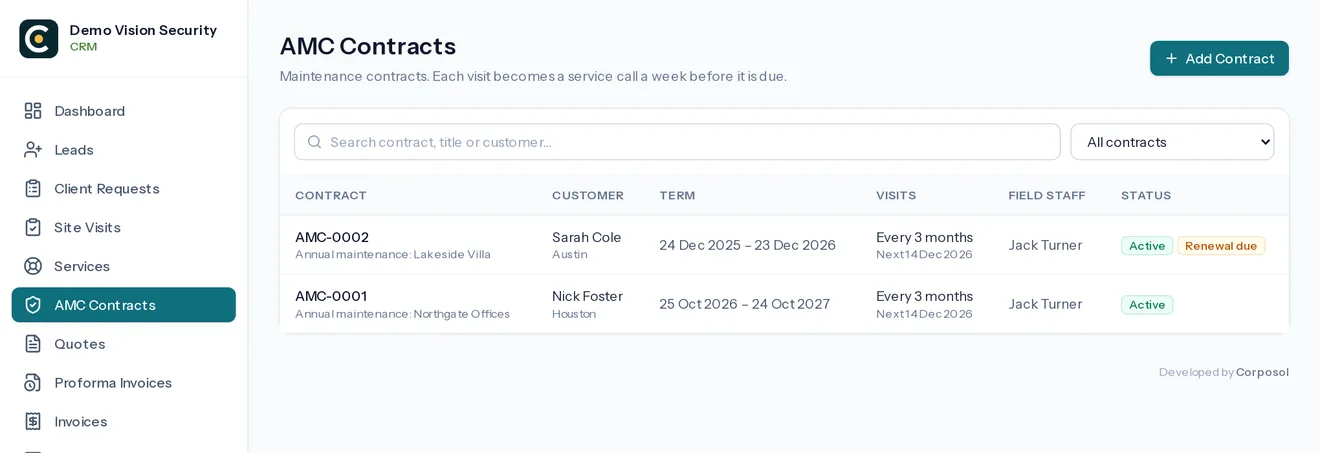
Add a contract
Click Add Contract, or choose Create AMC Contract from the actions on a customer's page.
| Field | How to fill it | Why it matters |
|---|---|---|
| Customer (required) | Search and pick the customer | The visits are created for this customer, with their name and phone |
| Title (required) | A short name, such as "CCTV AMC, 16 cameras" | Shown in lists and on every visit |
| What is covered | The visits, checks and what is charged extra | Copied into each visit, so the technician knows what to do |
| Starts on and ends on (required) | The contract term. The end date fills in a year from the start | Visits are only planned inside the term |
| Visits (required) | Every 1, 2, 3, 4, 6 or 12 months | The first visit is on the start date, then every few months |
| Next visit | Leave empty to plan it automatically, or pick a date | Use it to move one visit, for example to suit the customer |
| Field staff for the visits | The technician who usually does the visits | Each visit is assigned to them. Leave it empty to let field staff pick visits up |
| Contract value | The amount the customer pays | For your records. Only people who see money figures can see it |
| Google Maps location | A link to the site | Copied into each visit |
How visits are created
A week before each visit is due, CamVerion creates a service call for it. The service call shows Maintenance visit with the contract number and the date the visit is due. The technician sees it on their phone, records the work and any parts, and you can give the customer a receipt as usual.
To create the next visit's service call straight away, open the contract and click Create next visit now. The contract's page lists every visit created so far and its status.
If you change the start date, end date or how often to visit, the next visit is planned again from the last visit already created, so no visit is created twice.
Renewals
Contracts ending within the next 30 days, and contracts that ended in the last 30 days without being renewed, appear in:
- AMC renewals due on the dashboard
- the contract list, when you choose Due for renewal
Click Renew on the contract to start a new contract for the next term. It keeps the same cover, visits, technician, location and value, and starts the day after the old one ends. Edit it if the price or cover has changed. Once a contract is renewed, it no longer appears as due for renewal.
Tips
- Write what is covered clearly, including what is charged extra, such as parts or extra visits. It saves arguments later.
- Call the customer before each visit to agree a time, then book the slot on the service call.
- Start renewal conversations as soon as a contract appears on the dashboard, not after it has ended.
Our guide to CCTV AMC maintenance contracts explains how to price and sell them.
Frequently asked questions
How often can AMC visits be planned?
Every 1, 2, 3, 4, 6 or 12 months. The first visit is on the start date.
When is each maintenance visit created?
A week before it is due, as a service call assigned to the contract's technician. You can also create the next one straight away.
How do renewals work?
Contracts ending within 30 days, or ended in the last 30 days without renewal, appear on the dashboard. Renew starts a new contract with the same cover from the day after the old one ends.
Want a walkthrough? We can show you these screens using a job like yours.