VAT
Updated 24 November 2026
Quick answer
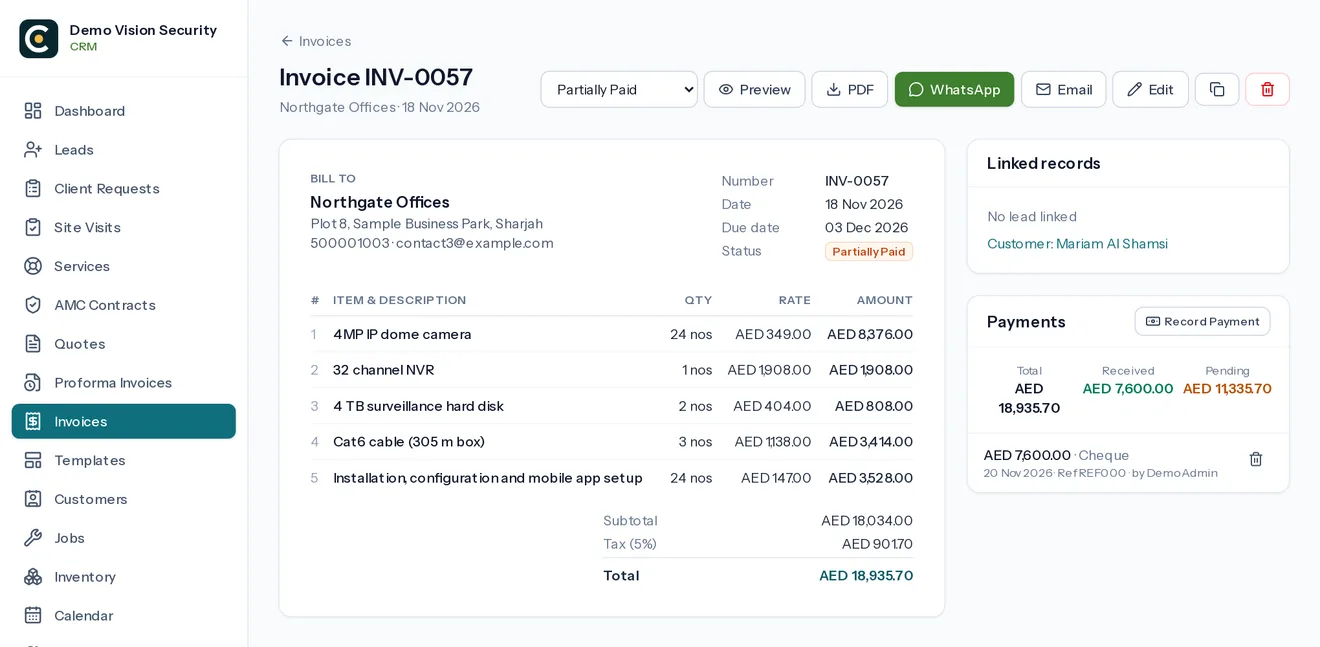
Enter your tax registration number and VAT rate in company settings. Each line on a quote or invoice uses that rate unless you give it its own. The Sales Tax report totals the VAT on your sales for any period, with a CSV file for your accountant.
Your quotes, proforma invoices and invoices add VAT at the rate in your settings and print your registration number.
Set it up
In company settings:
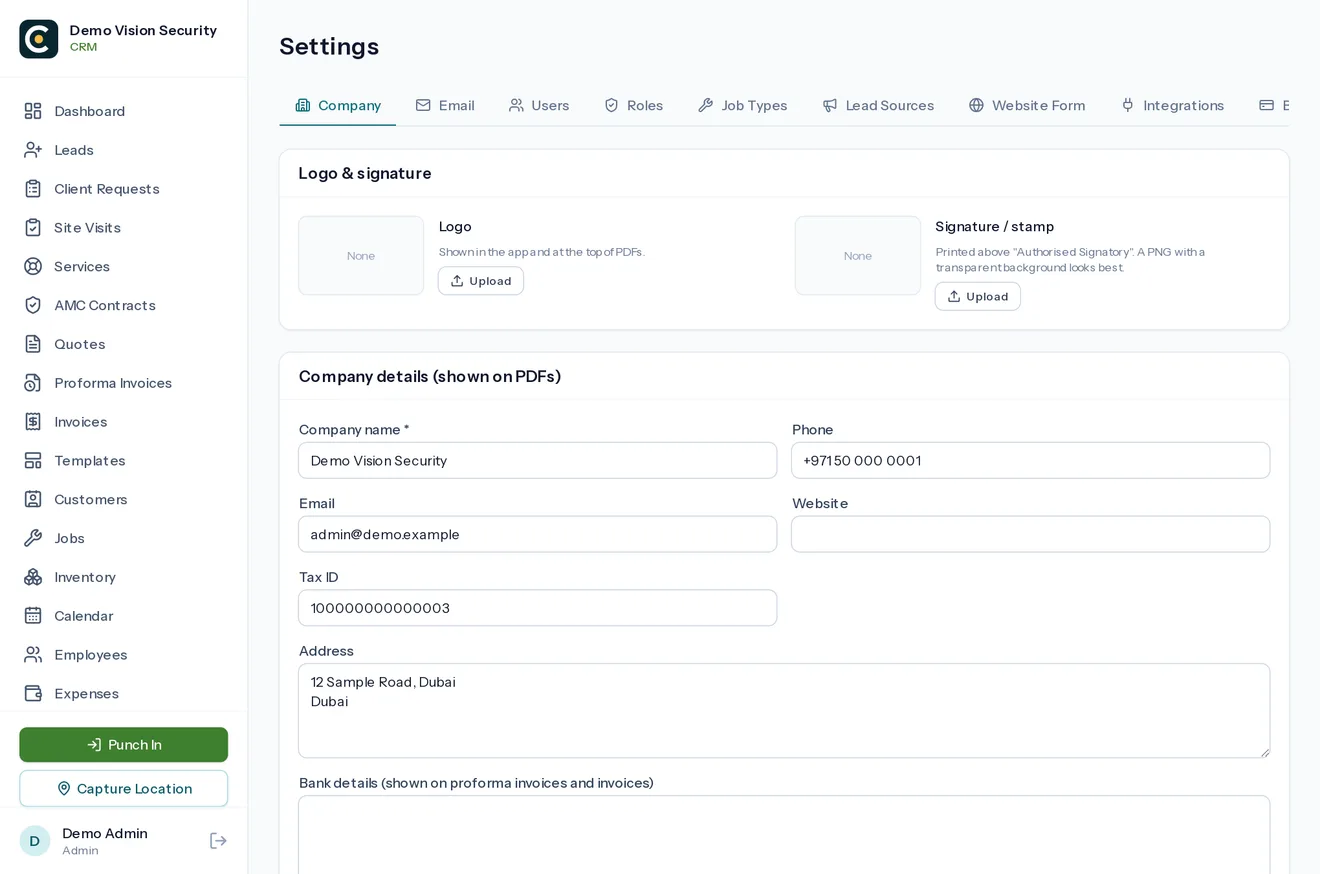
- Enter your TRN in Tax ID.
- Check Default tax %. New UAE accounts start at 5%.
- Check the currency symbol. New UAE accounts start with AED.
On a quote or invoice
- Enter the customer's registration number in Client tax ID when they have one.
- Leave Tax % blank on a line to use the default, or enter another rate for that line, such as 0.
The Sales Tax report
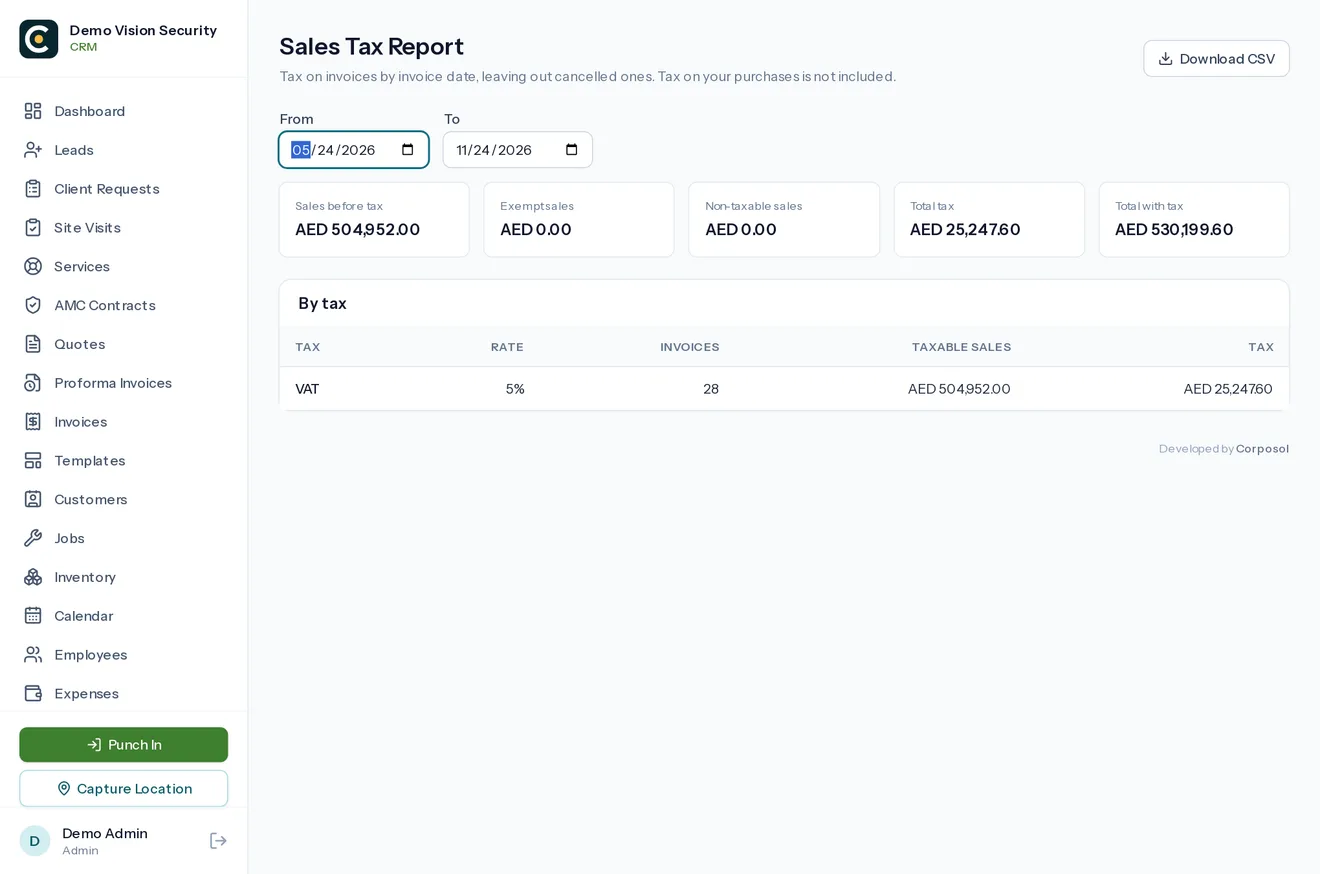
Open Sales Tax in the menu and choose the dates. It shows sales before tax, the VAT by rate and the total. Press Download CSV for your accountant.
It uses invoice dates and leaves out cancelled invoices. VAT on your purchases is not included.
Please check with your accountant
Have your accountant confirm your rates and what your tax invoices must show. CamVerion does not file VAT returns.
Frequently asked questions
Does CamVerion issue UAE e-invoices?
No. It prints VAT quotes and invoices. Where e-invoicing applies to you, issue them from an approved system.
Can one line have a different VAT rate?
Yes. Enter the rate on that line. Lines left blank use the default rate.
Does CamVerion file my VAT return?
No. It gives you the report and a CSV file to use for your return.
Want a walkthrough? We can show you these screens using a job like yours.