Everything an installation business runs on
Contractor CRM, quotation software, job and work order management, technician scheduling and tracking, invoicing, AMC and inventory: one field service management system from the first enquiry to the last service call. Every plan includes all of it, with no modules to add on.
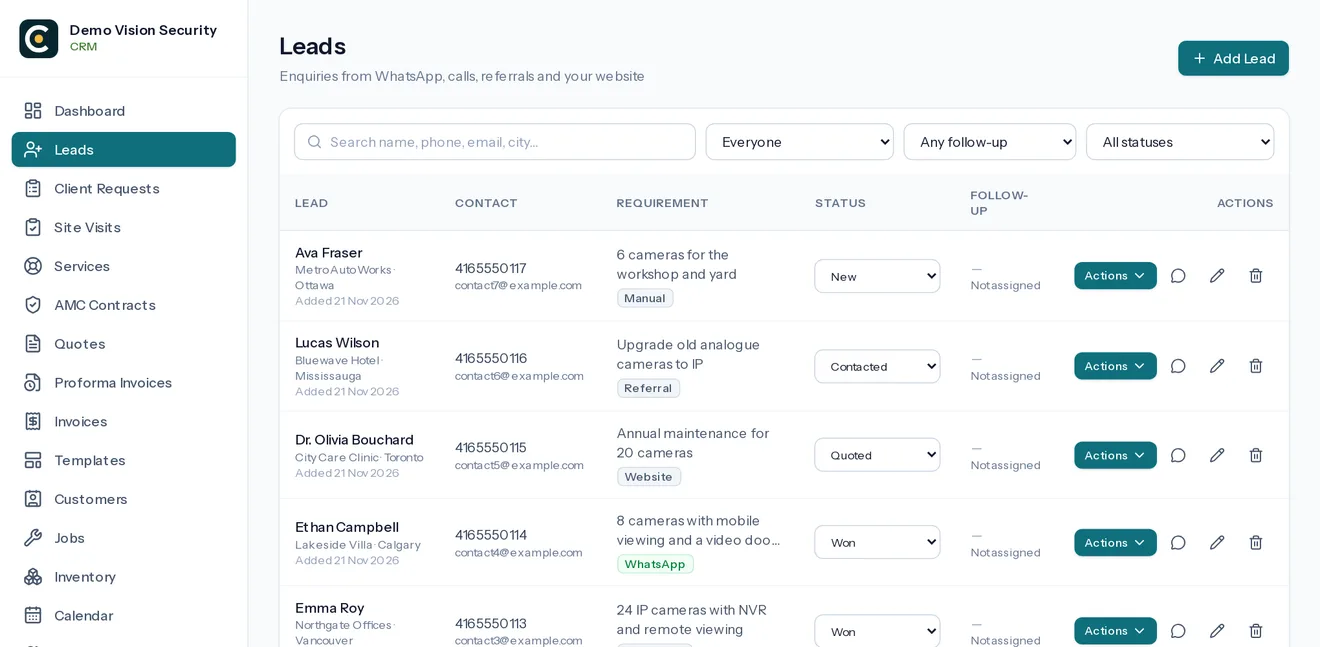
Leads
Never lose an enquiry in a chat again
Enquiries come from WhatsApp, phone calls, referrals and your website. Put each one in one list and always know who needs a reply.
- Record the source, so you can see where work comes from
- Follow each lead through New, Contacted, Quoted, Won or Lost
- Assign each lead to a person and set the next follow-up date; the dashboard lists every follow-up due
- Message a lead on WhatsApp from a saved template
- Add a WhatsApp Web chat as a lead in one click with the Chrome extension
- Connect your own website's contact form, so each enquiry arrives as a lead
Site visits
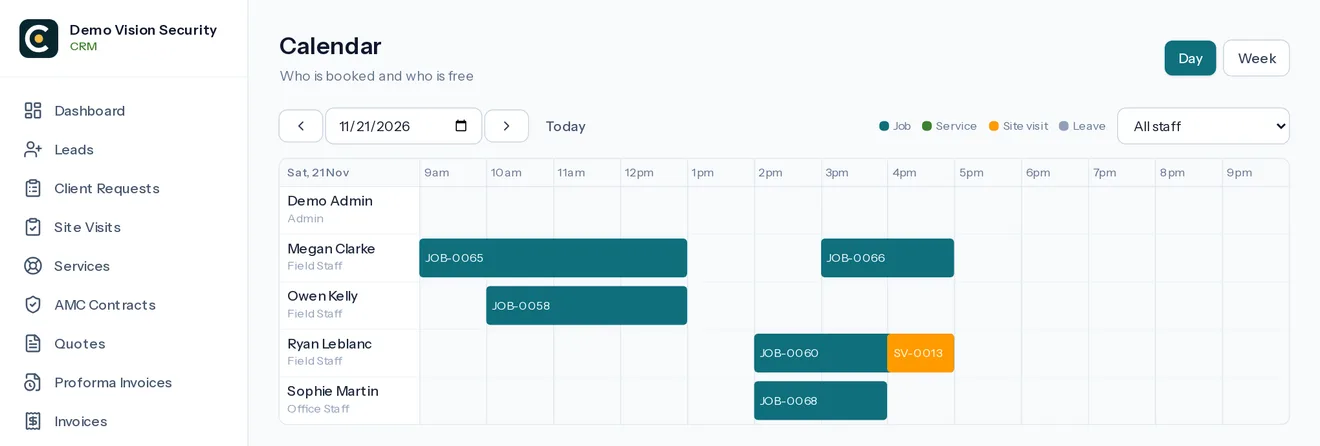
Send the right person to survey the site
Book a survey into an engineer's day. Their notes stay with the lead, and the address carries through to the quote.
- See who is free before you book
- Survey notes are ready when you write the quote
- Mark each visit Scheduled, Completed or Cancelled
Quotes
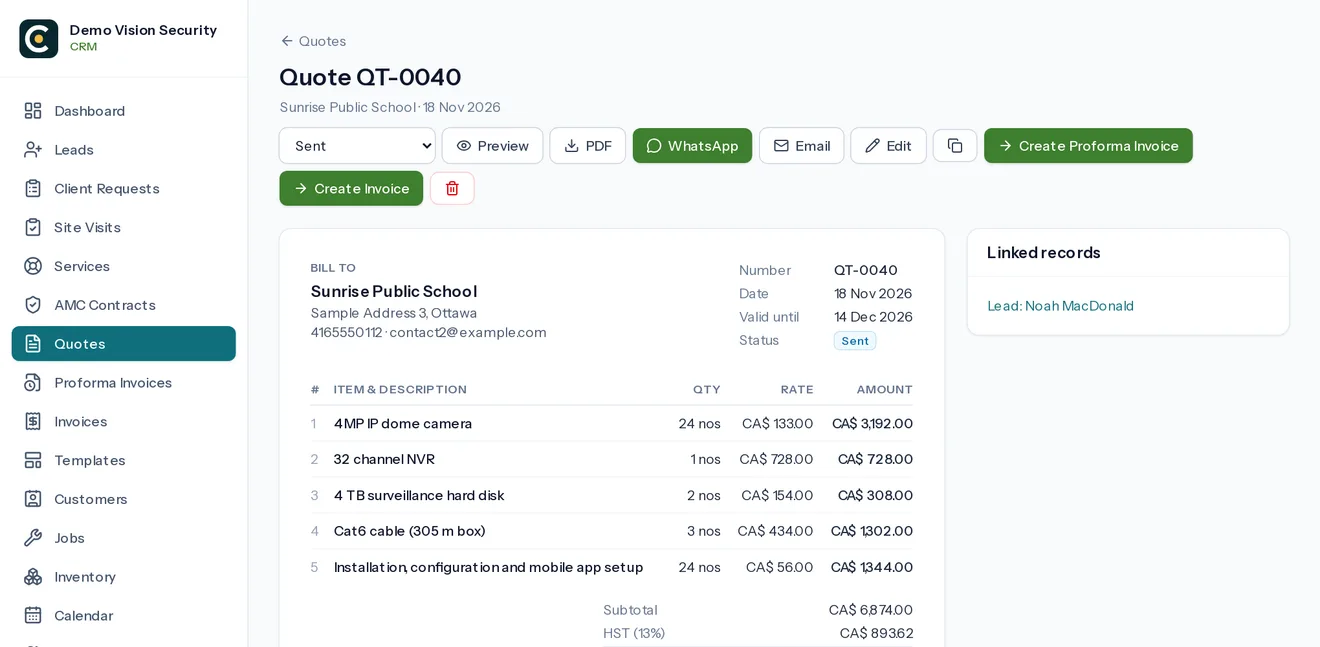
Send a professional quote while the customer is still interested
Start from a template such as a 4 camera shop package, change what is different, and send the PDF straight to WhatsApp or email.
- Reusable document templates and an item catalogue
- Your logo, signature, terms and specifications on the PDF
- See whether each quote is Draft, Sent, Accepted, Rejected or Converted
Online service request form
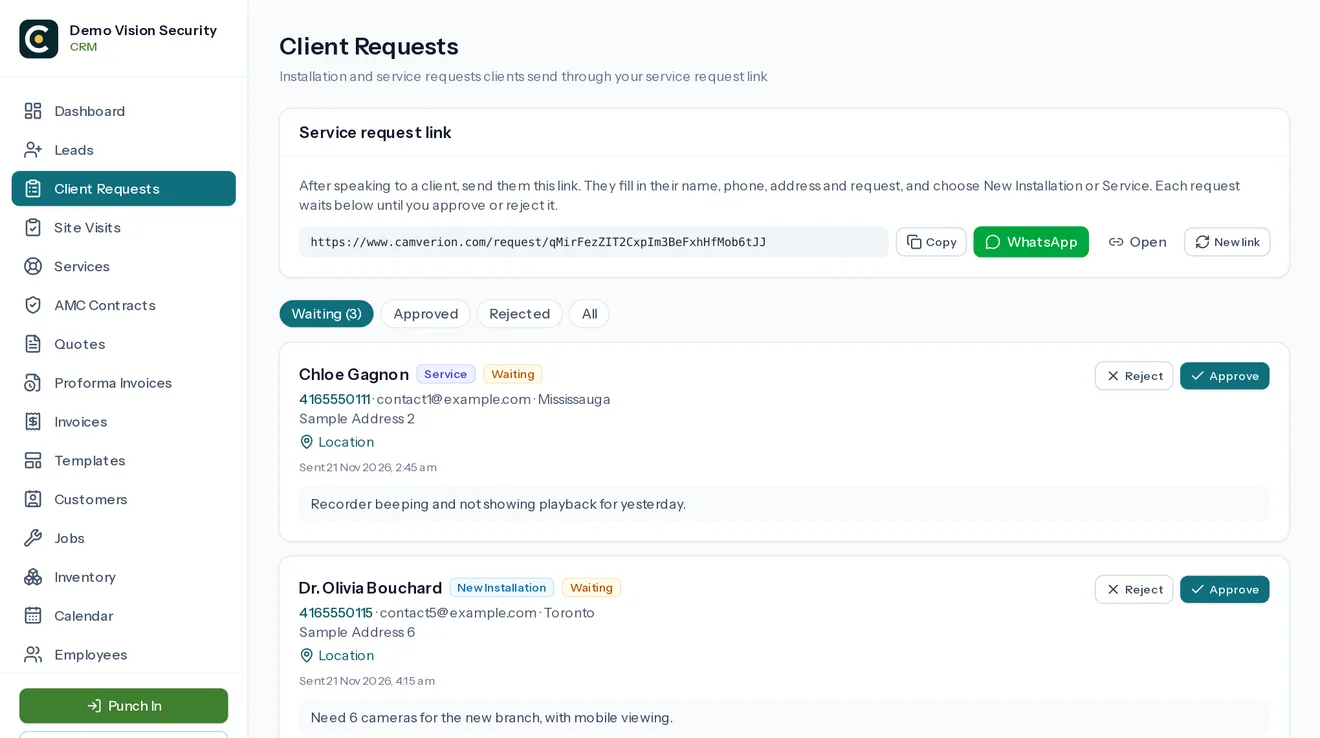
Let clients raise requests while you are busy
Send clients your service request link by WhatsApp after a call, or put it on your website. They choose New Installation or Service, enter their name, phone, address and request, and paste their Google Maps location. Each request waits in Client Requests until an admin approves or rejects it, so spam never reaches your leads.
- Your company name and logo on the form
- Google Maps location required, so nobody hunts for the address
- Approve a New Installation into Leads, or a Service into Leads and Services
- If the phone number matches an open lead, the request is added to that lead
- Every admin is emailed from your own company mailbox
- Make a new link at any time; the old one stops working
Send several at once
Quotes, proformas and invoices in one message
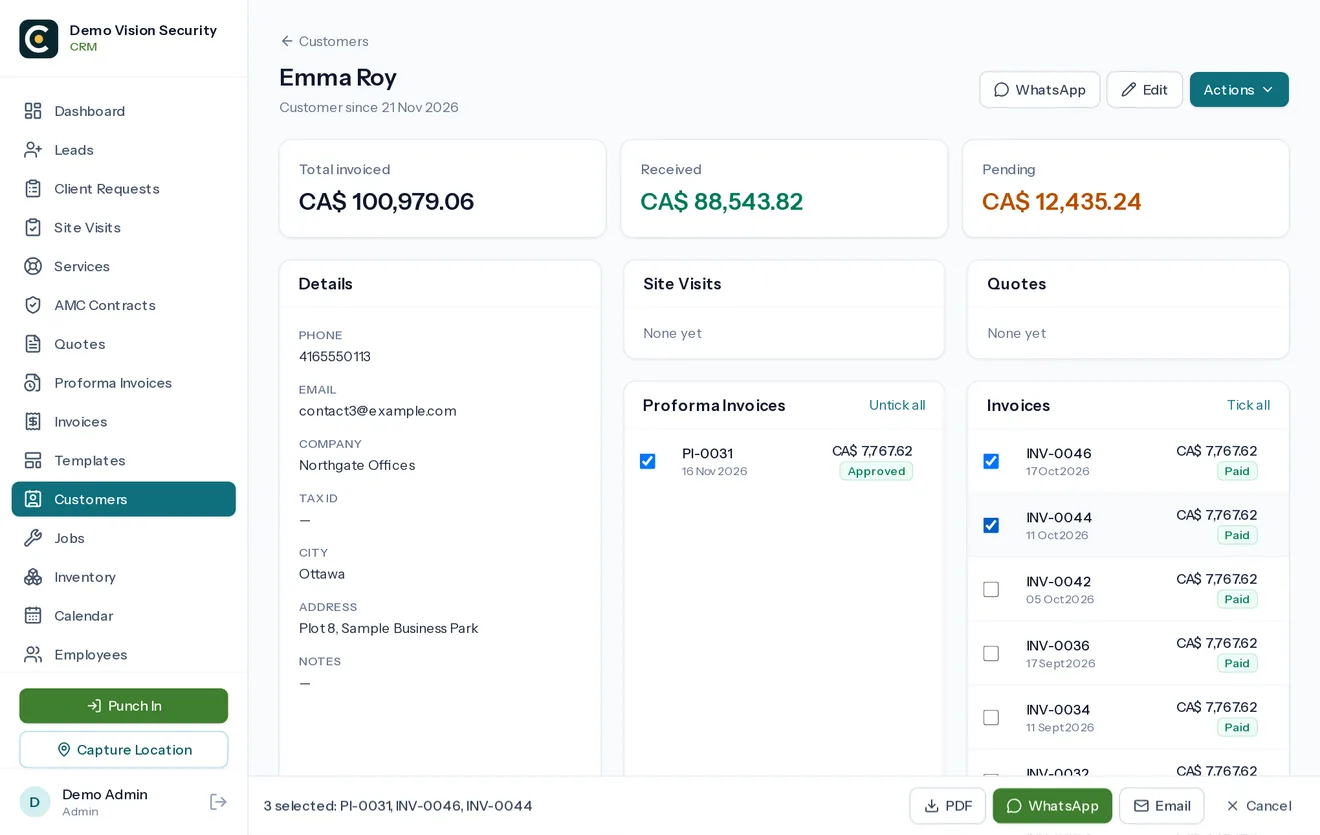
Customers often need the quote, the proforma and an older invoice together. Tick them on the lead or customer page and send them in one WhatsApp message or one email, or download all the PDFs at once.
- Works on leads and customers
- Quotes, proformas, invoices and service receipts
- Sent from your own WhatsApp number and mailbox
Jobs
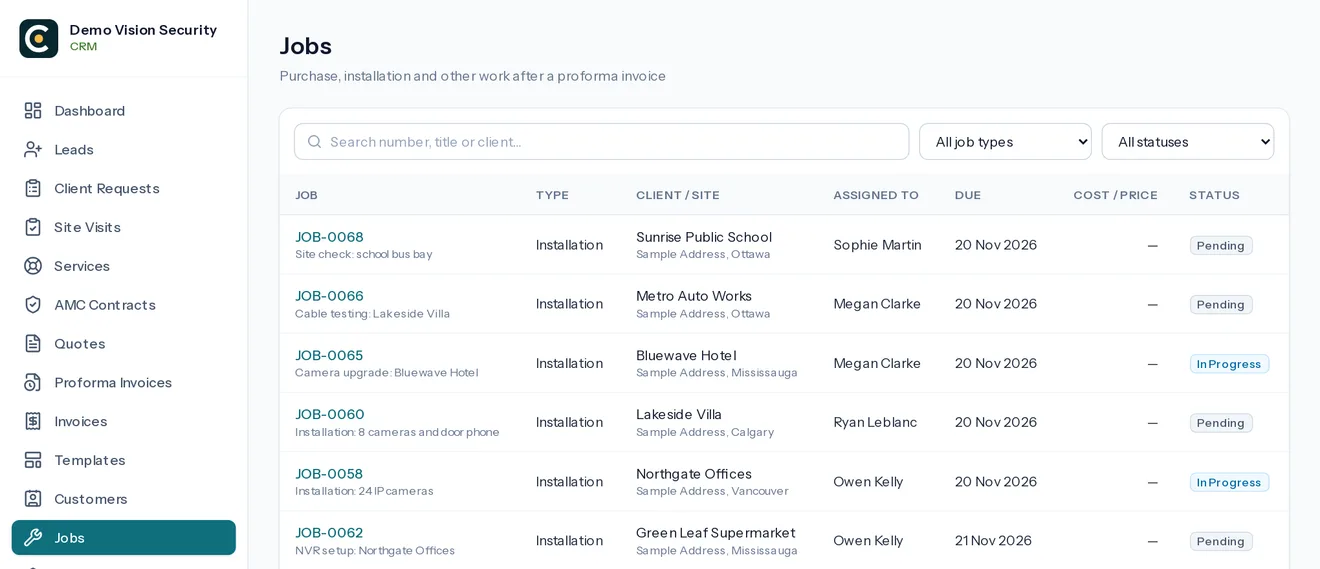
Turn an order into scheduled work
Each new proforma gets its purchase and installation jobs automatically, so the work does not depend on someone remembering.
- Your own job types, such as purchase, installation and commissioning
- Follow each job through Pending, In Progress, Hold, Completed and Approved
- Photos, notes and costs recorded from site
- Optional inventory: stock is taken out against each order, and items the installers did not use go back into stock
Service calls
Handle every service call without losing track
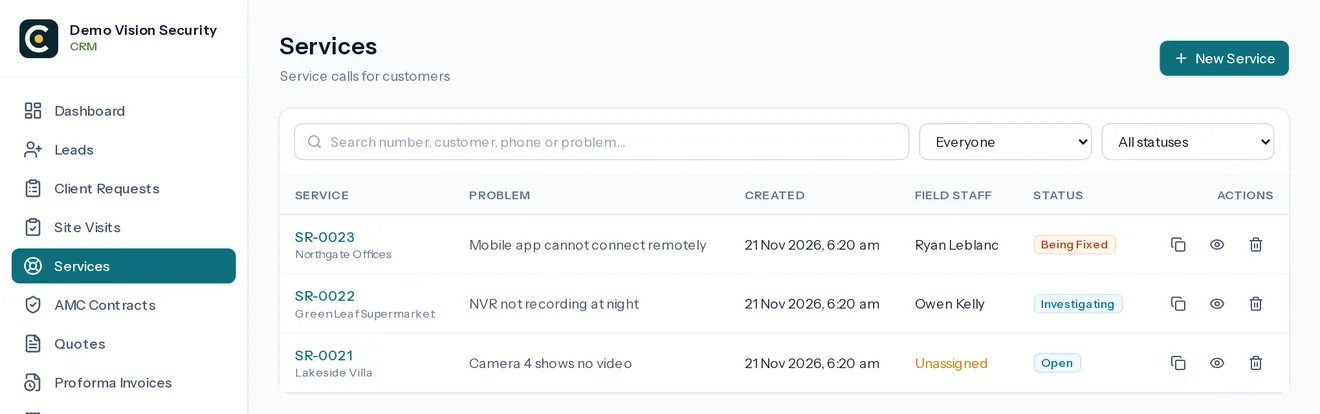
Log the problem and its location. An engineer picks it up, updates its status, adds expenses and the customer can get a receipt.
- Follow each call through Open, Investigating, Issue Traced, Being Fixed and Issue Resolved
- Keep the phone number and Google Maps location with the call
- Expenses appear on the service receipt
- AMC maintenance contracts create each planned visit as a service call and list contracts due for renewal
- Record the service charge and the payments once the call is resolved
- Send customers a service request link to report problems themselves
Inventory (optional)
Know what is on the shelf, and which job used it
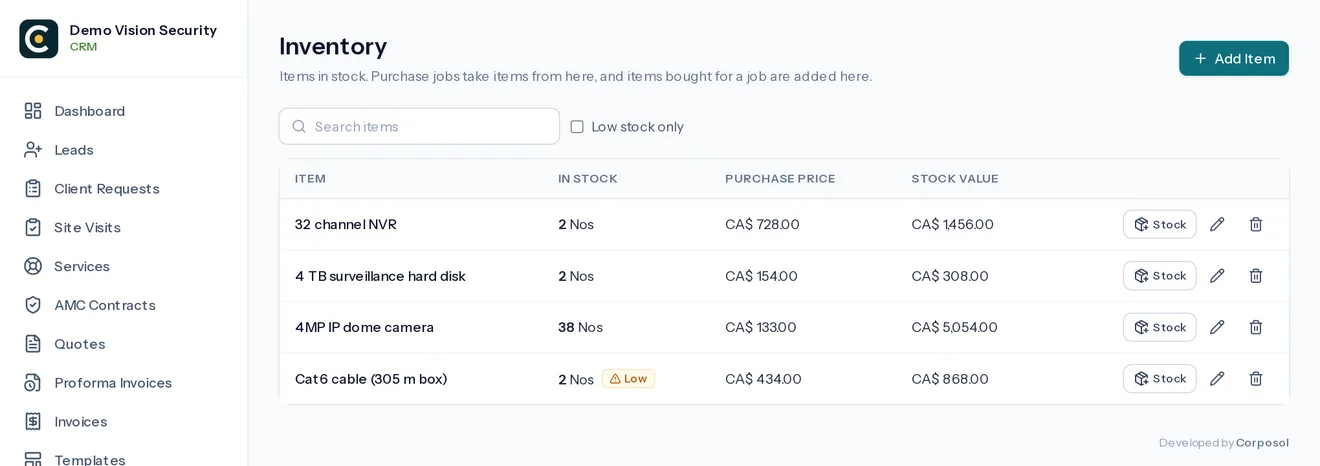
Switch on Inventory in Settings to keep the items you install in stock. Record stock bought with the price and supplier, correct it after counting, and get a warning when an item runs low. Purchase jobs take items from stock or buy new ones against each proforma, and installers record what they really used.
- Quantity in stock, purchase price and stock value for every item
- Every movement kept: opening stock, bought, corrected and used on each job
- Unused items go back into stock automatically
- Only people you allow can add or correct stock
Track the field team
Field staff tracking without a separate GPS tracker
The four features below give the office real attendance, the places staff visited, the hours spent on each job, and logins that belong to one person. They work in the phone's browser, and locations are taken only when staff press a button.
Capture Location
See where sales and field staff have been
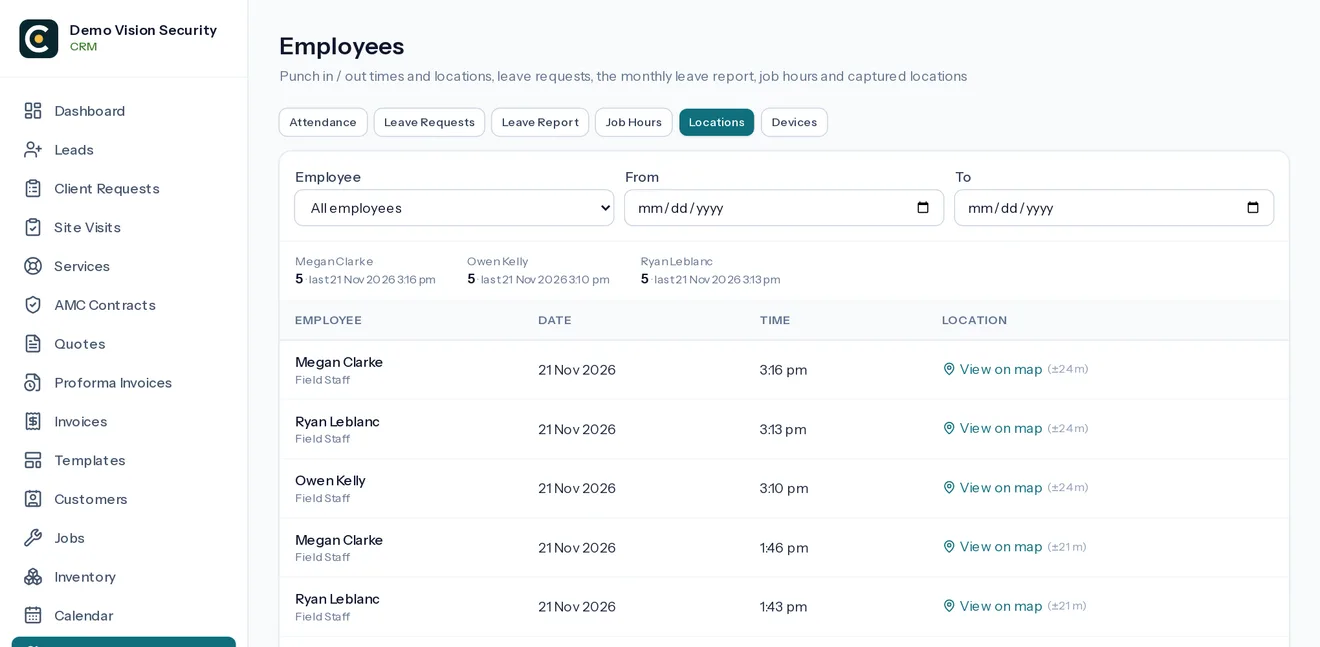
Every employee has a Capture Location button. Pressing it saves their position and the time, and admins see it on the Locations report with a link to the map. Ask staff to capture their location at each client they visit, or every hour, and check visits at random instead of phoning around.
- Works for sales staff visiting clients and technicians on sites
- Filter by employee and by date
- The accuracy of each location shown in metres
- Staff can see their own captured locations too
Punch in and punch out
Attendance with the time and place
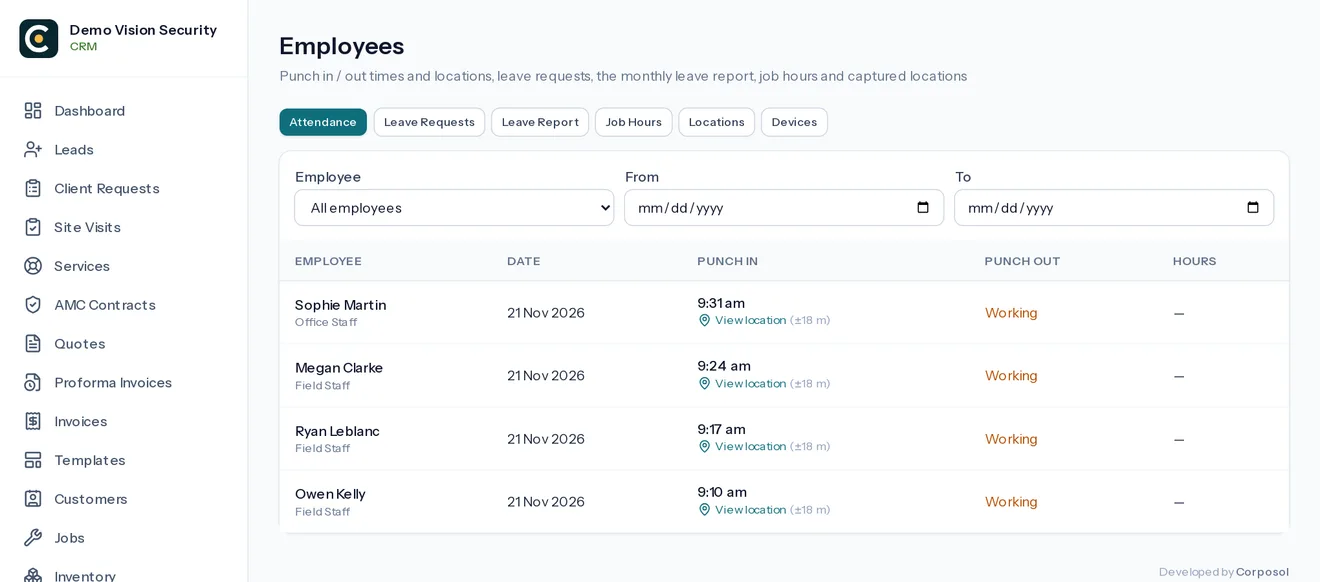
Staff punch in when they start and punch out when they finish, from their phone. Each punch records the time and location. A forgotten punch out closes automatically at the end of the day.
- Who is working right now, and where they punched in
- Monthly attendance and a leave report for payroll
- Leave requests and approvals in the same place
Start Work and End Work
The real hours spent on every job and service call
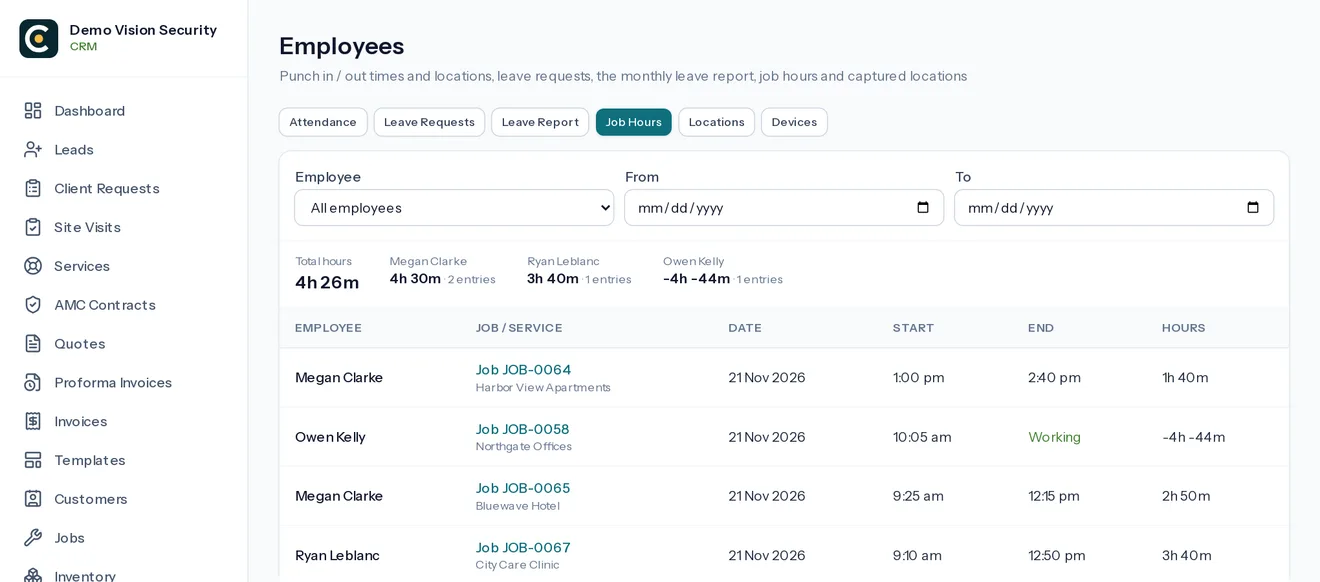
On each job or service call, the person assigned presses Start Work when they begin and End Work when they stop. Starting other work or punching out ends it automatically. The Job Hours report shows the time per job, per person and per day.
- Know what each installation and service call really took
- Price the next job on facts, not guesses
- Spot attendance hours with no work recorded against them
Approve new device login
Each person signs in from their own phone only
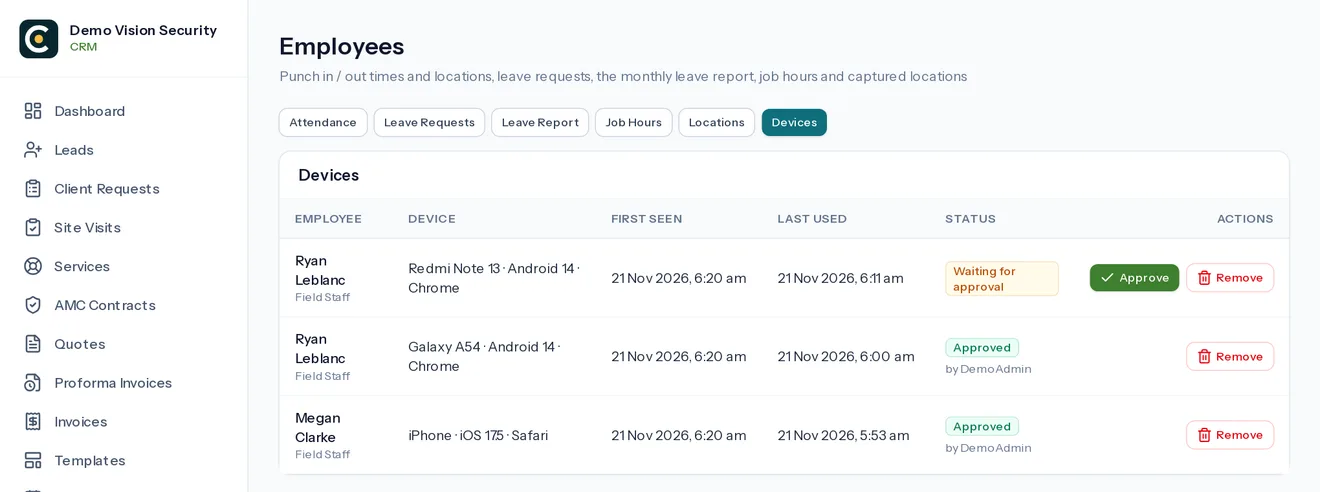
Switch on device approval in Settings, and choose whether it applies to field staff only or to everyone except admins. Each person's first device is approved automatically. A login from any other phone or computer waits under Employees, Devices until an admin approves it, and approving it signs out the old one.
- Stops staff sharing logins or punching in for each other
- One device per person, approved by the admin
- Remove a lost phone and it is signed out at once
- Admins are never asked for approval
Set up for Canada
- Documents in Canadian dollars
- Your GST/HST rate and business number on every invoice
- Canadian phone numbers and time zones
- Quotes and invoices by email or WhatsApp
Invoices
From quote to invoice without retyping
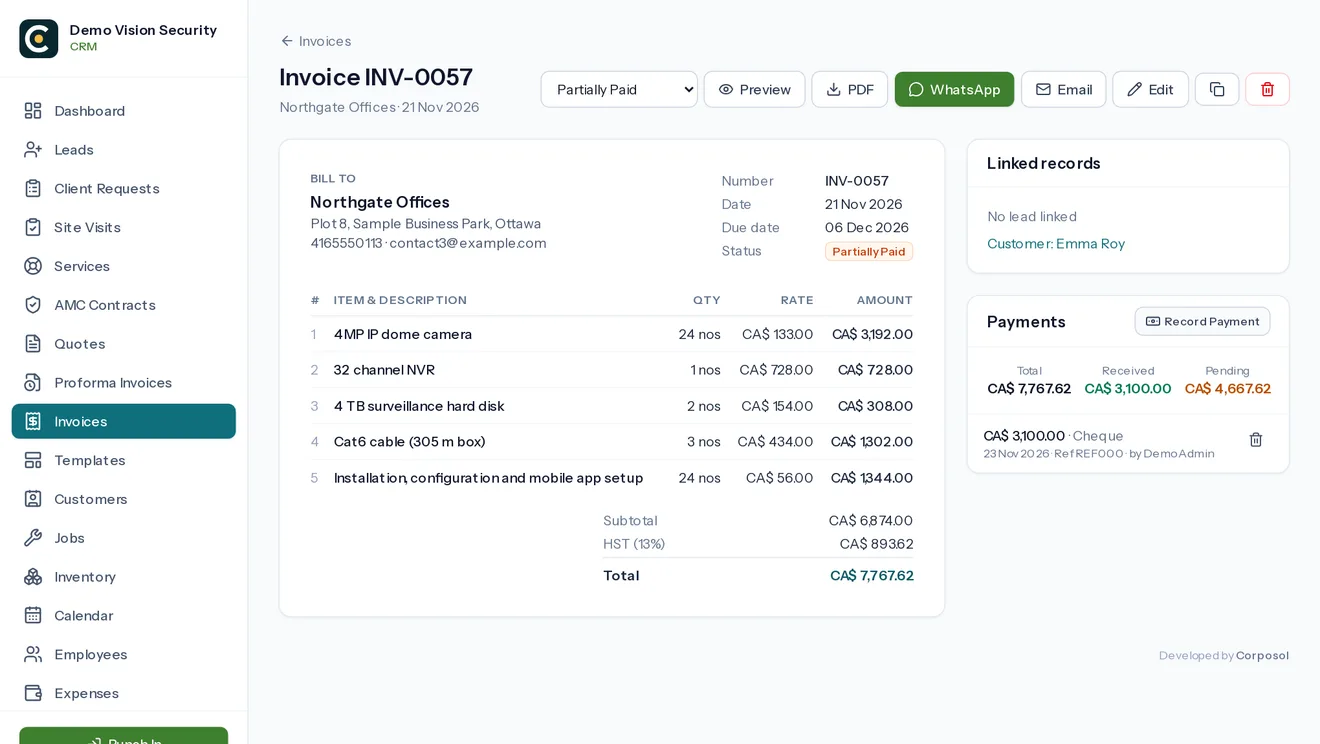
Convert a quote to a proforma and then an invoice in a click. Record full or part payments and see at a glance what is still owed.
- Automatic numbering with your own prefixes
- Record payments by cash, bank transfer, cheque, card and more
- Send invoices and receipts by WhatsApp or email
Attendance and leave
Know who is working and where
Staff punch in from their phones. Leave requests go to an admin for approval, and reports are ready when you run payroll.
- Punch in and out with location
- Automatic punch out if someone forgets
- Start and End Work on a job records the real hours spent
For field staff
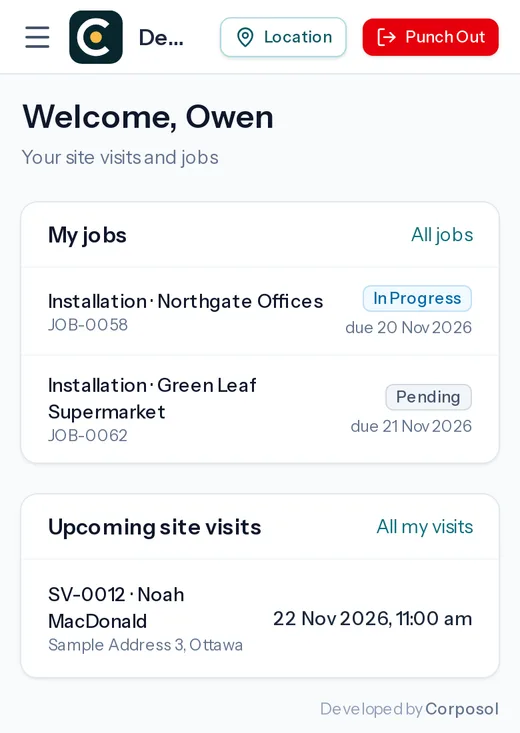
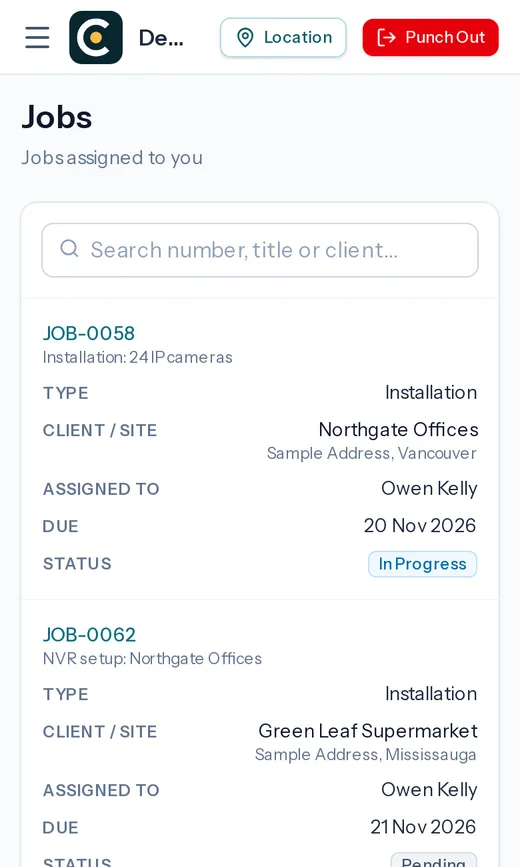
A simple phone view for engineers
Field staff see only their own work, not your pricing or accounts. They open the day's jobs, add photos and notes, and claim expenses with a picture of the bill.
Dashboard
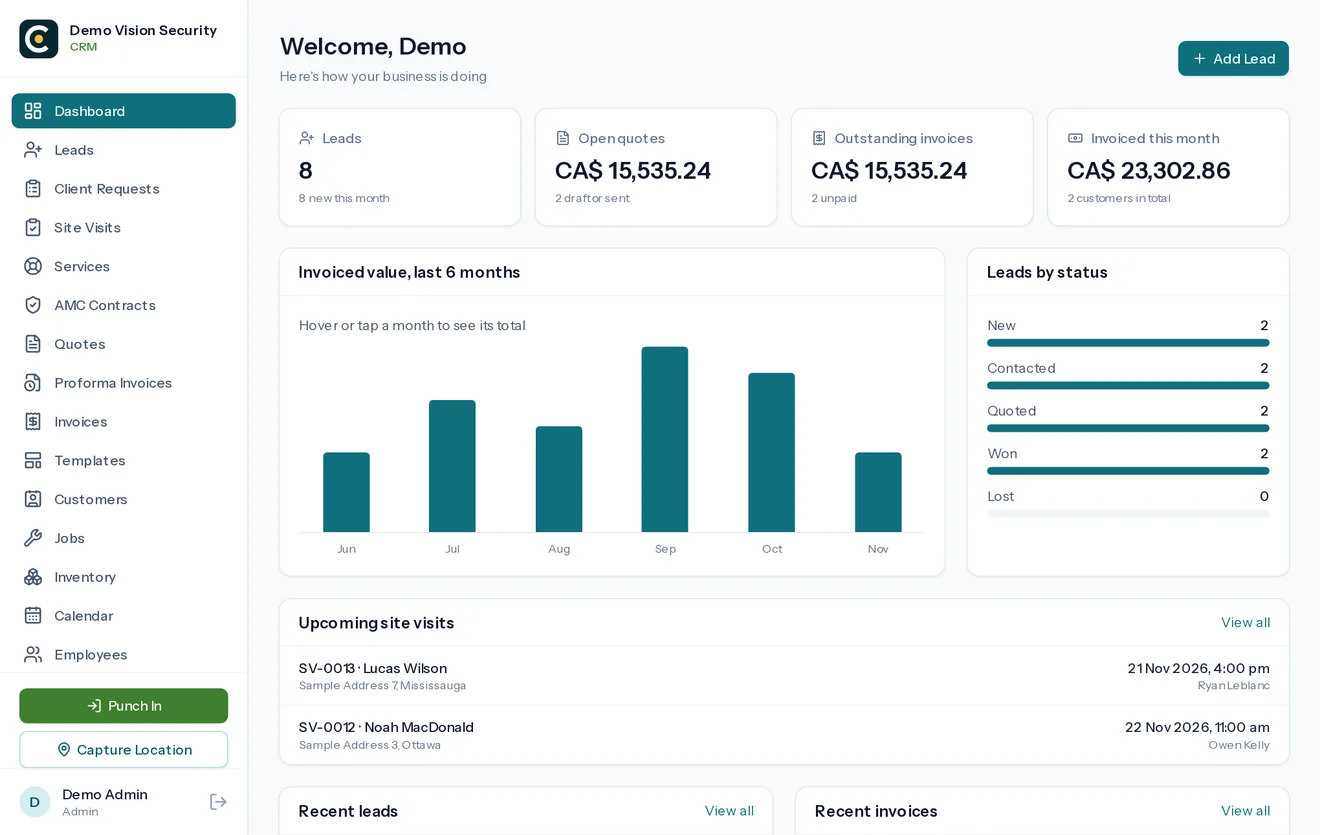
See the whole business on one screen
See how enquiries, work and money are moving, without asking anyone for an update.
- Separate logins for admin, office and field staff
- Each company's data kept separate from every other company
- Your logo, bank details and document terms under your settings
Why not spreadsheets and WhatsApp groups?
They work when you have a few jobs a month. As the team grows, the problems below start costing real money.
| The work | With chats and spreadsheets | With CamVerion |
|---|---|---|
| Enquiries | Scattered across staff phones | One list with status and history |
| Quotes | Copied from an old file, with old prices | Templates and a catalogue, sent as a PDF |
| Scheduling | Discovered clashes on the day | See each employee's day before booking |
| Job progress | Phone calls to ask for updates | Status, notes and photos on the job |
| Money owed | Worked out by hand at month end | Paid and unpaid amounts on each invoice |
| Staff expenses | Paper bills and memory | Bill photo and a running account per employee |
| Where staff were | Asking on the phone | Punch-in and captured locations on a report |
| Hours per job | Guessed at month end | Start Work and End Work on every job |
| Shared logins | One password passed around | Each person signs in only from their approved phone |
| Service requests | Missed calls and voice notes | Clients fill in your request link with their location |
Common questions
Which businesses is it for?
CamVerion is made for companies that install and service systems on customer sites: CCTV, security and fire alarms, home automation, AC and HVAC, RO and water purifiers, solar and inverters, AV and home theatre, networking, electrical services, IT and computer service, and appliance repair. The screens and workflow follow how this work is really done, from site survey to commissioning and service.
Can I track where my field staff are?
Yes. Staff punch in and out with location, and press Capture Location at each client or every hour as you ask them to. Admins see every location on the Locations report. Locations are taken only when staff press a button, never in the background.
Can I see how many hours were spent on each job?
Yes. The person assigned presses Start Work and End Work on each job and service call, and the Job Hours report shows the time per job and per person.
Can I stop staff logging in from other phones?
Yes. Switch on device approval in Settings. Each person can then sign in only from their approved device, and a new device waits for the admin to approve it.
Can clients send service requests online?
Yes. Each company gets a service request link to send by WhatsApp or put on its website. Requests wait for an admin to approve them into Leads and Services.
Can field staff use it on a phone?
Yes. It runs in the phone's web browser, and field staff see only the work assigned to them.
Can we add our own logo?
Yes. Every company adds its own logo, signature, bank details and terms, and they appear on its PDFs.
Can it send from our own WhatsApp number?
Yes. You link your number by scanning a QR code, in the same way as WhatsApp Web, and documents are sent from it.
Does it handle GST/HST for Canadian businesses?
Each document has one tax line at your rate, such as 13% HST, with your business number shown as the tax ID. Provinces that charge GST and PST separately would show them as one combined rate. It does not file tax returns.
Can you build something specific to our company?
Yes. We also build customised versions, including white-label software under your own brand.
Learn how each screen works in the user docs, or see pricing.
Run your next installation job from one place
Sign up with your company details and pay online. Your account opens as soon as you have paid, and you can add your team.